BLACK FRIDAY

2× credits on new plans, plus 2× packs for subscribers. Ends Dec 1.

Ends Dec 1, 11:59 pm PTGet 2× credits

AI Anime Upscaler

Make anime stills, manga panels and illustrations larger. Choose an available factor, inspect the outlines and color fills, and save an enlarged PNG.

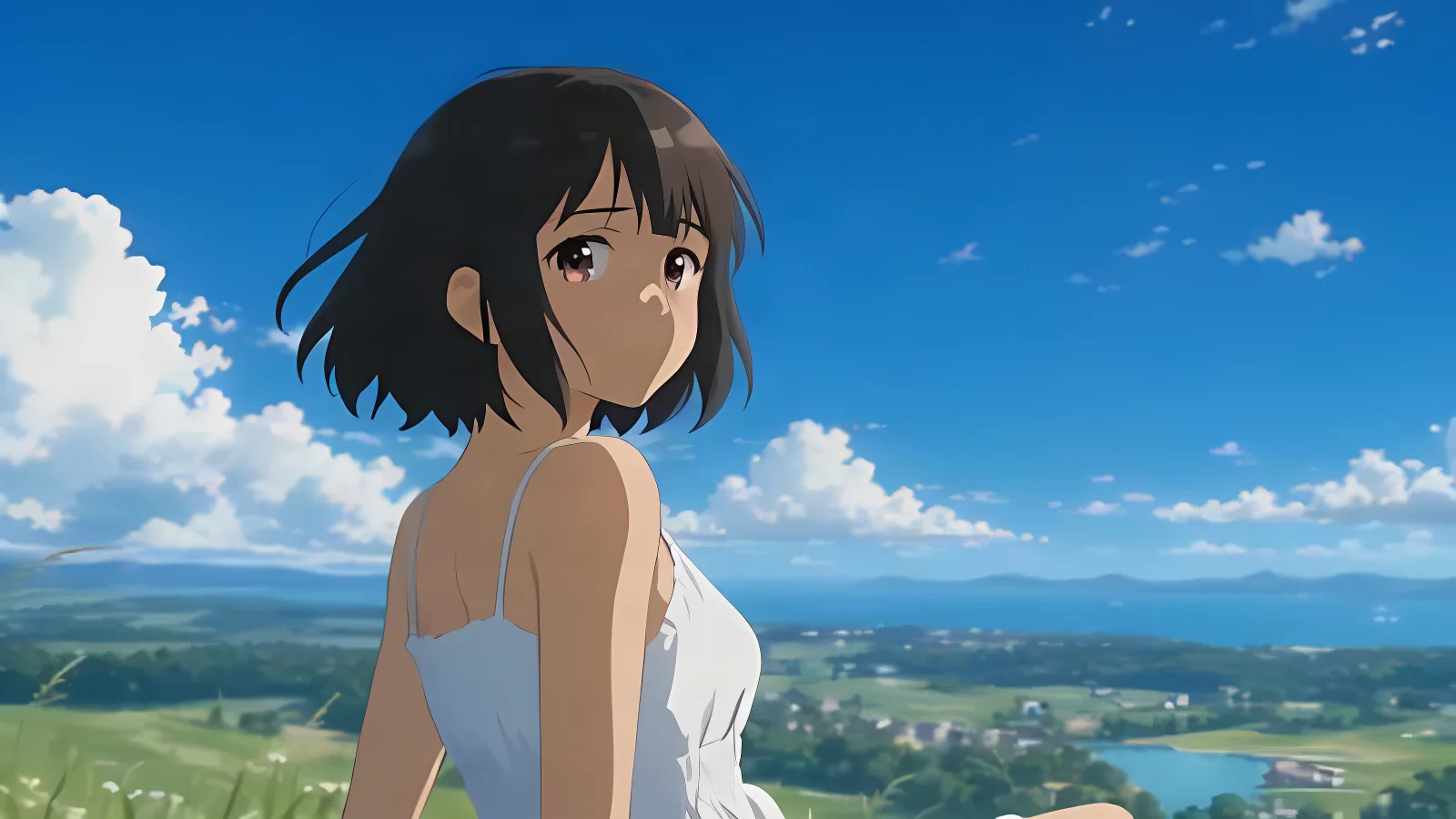
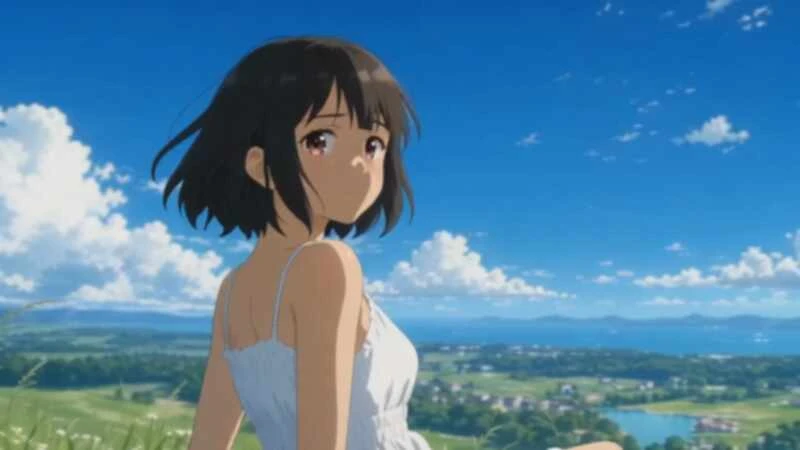
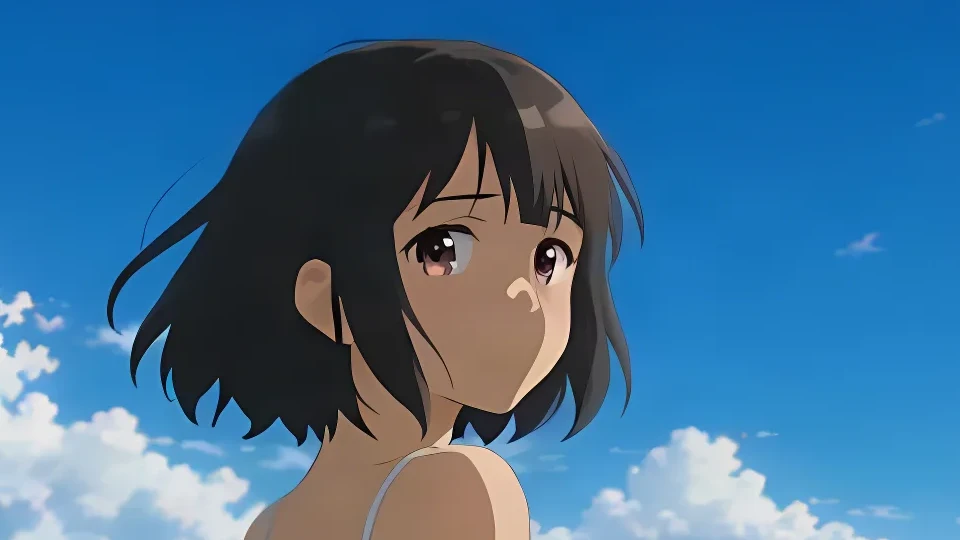
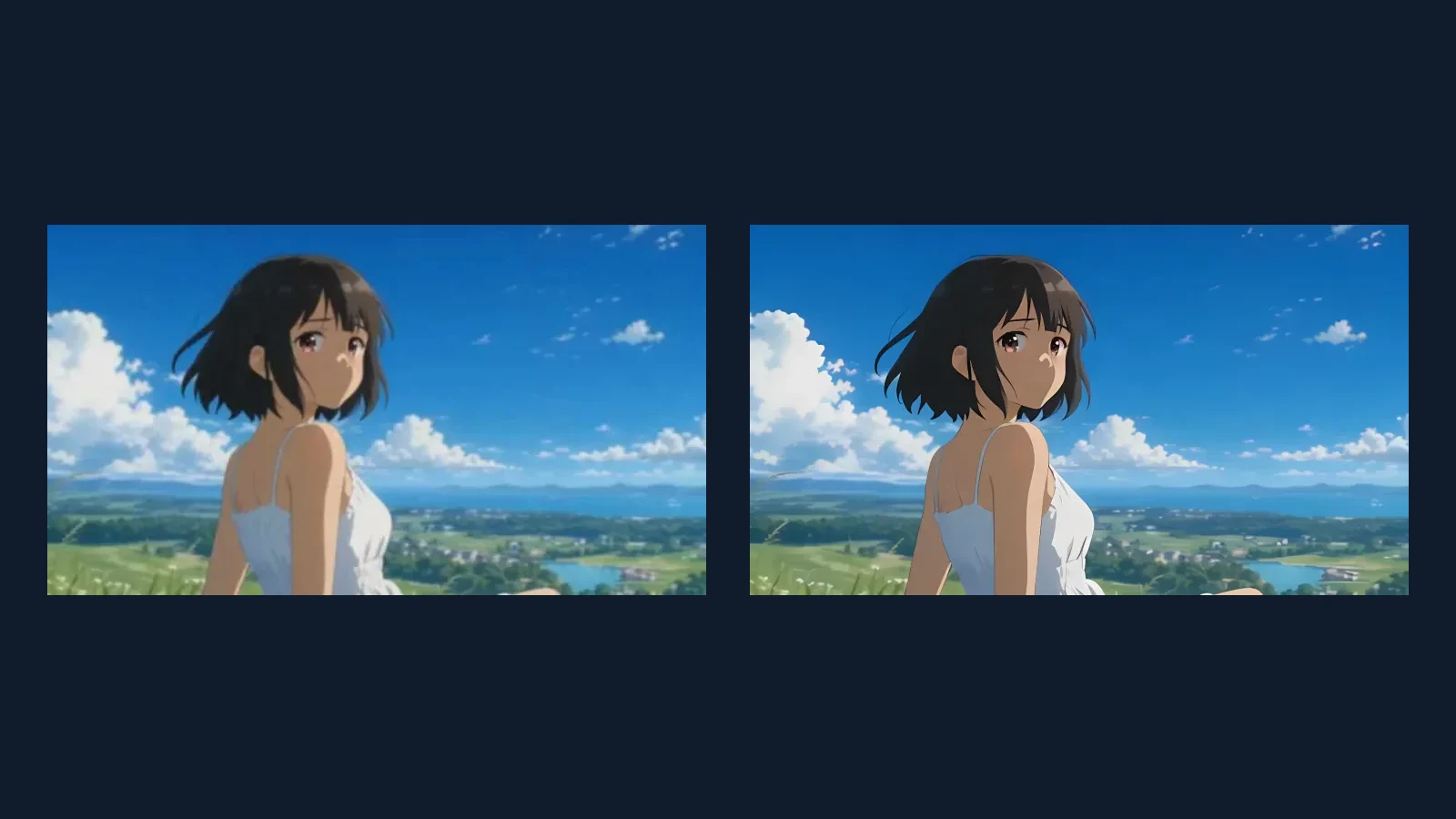
The same anime hilltop still enlarged with Anime mode
Simulated low-resolution anime still of a girl on a grassy hill beneath a blue sky
800 × 450 source1600 × 900 · Anime 2×
Mode
Upscale factor
Requires purchased credits
Output
—
Cost
—
  • Dedicated Anime mode
  • Static artwork
  • PNG output

See it in action

AI anime upscaler before and after

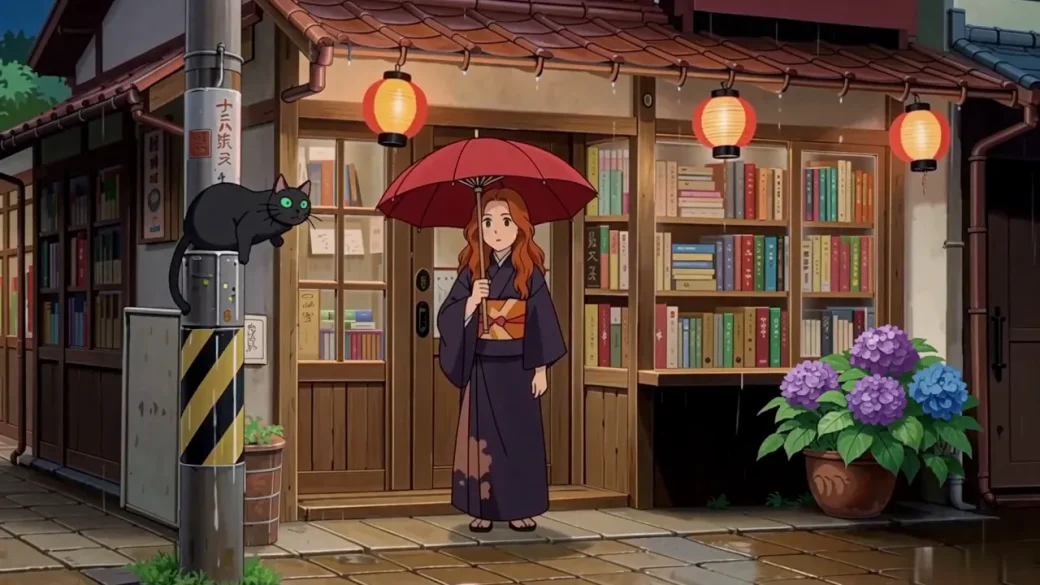
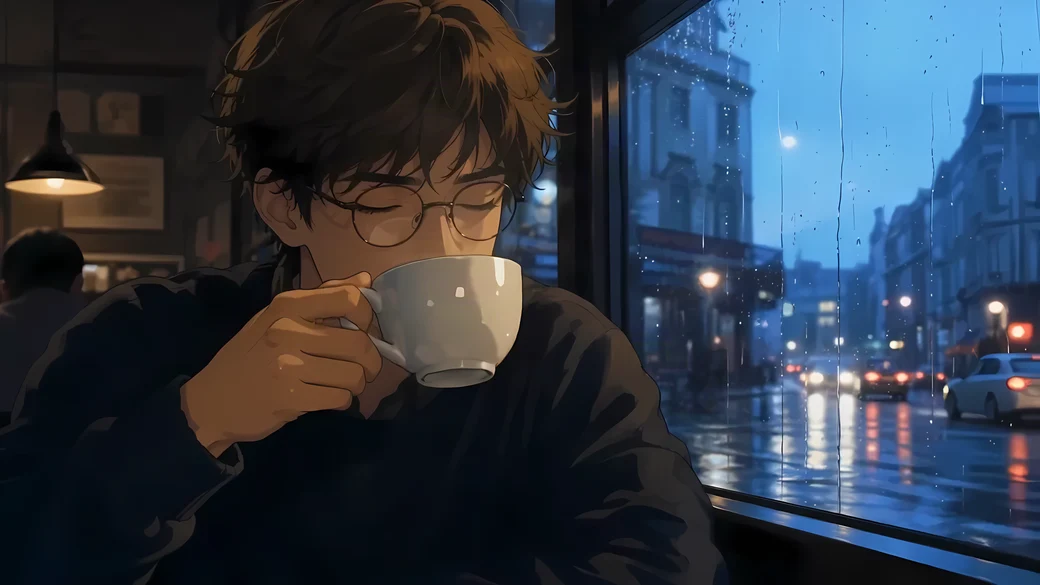
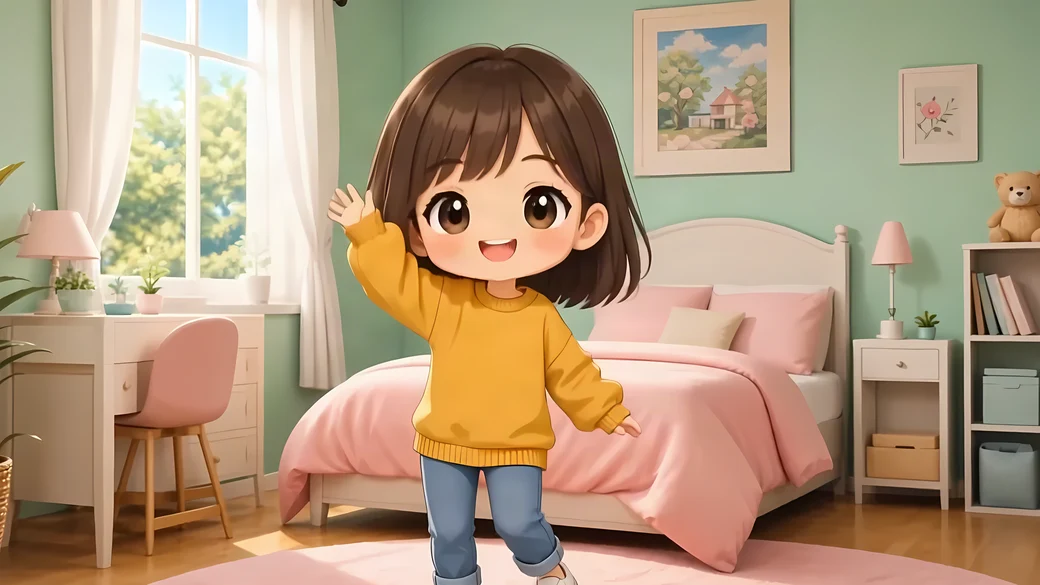
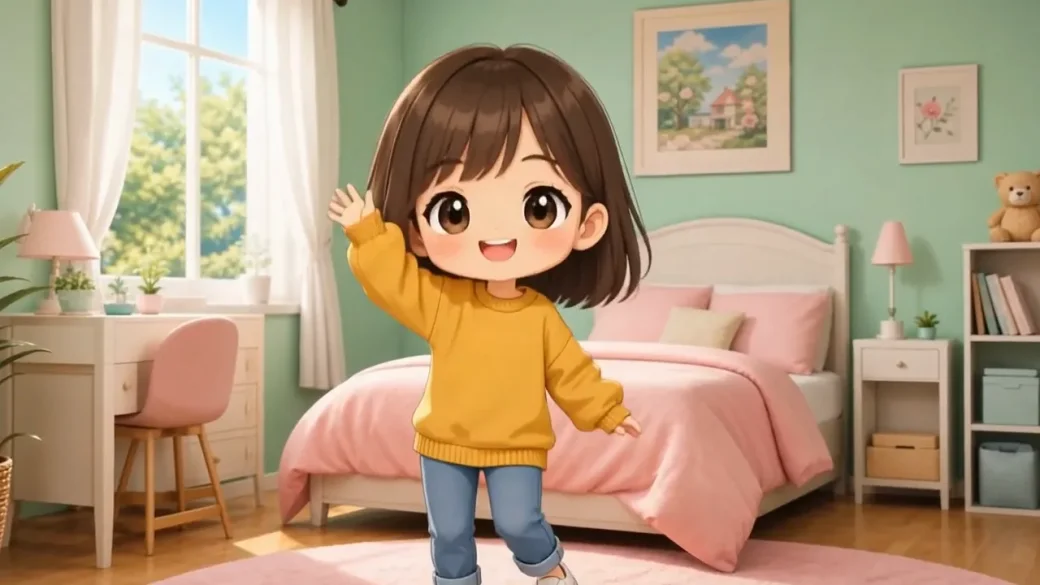
Move the sliders to compare four Anime upscales. Check the hair outline in the hilltop still, the reflections outside the bookshop, the café portrait’s shading or the chibi character’s raised hand. Compare the same part of each picture at equal zoom.

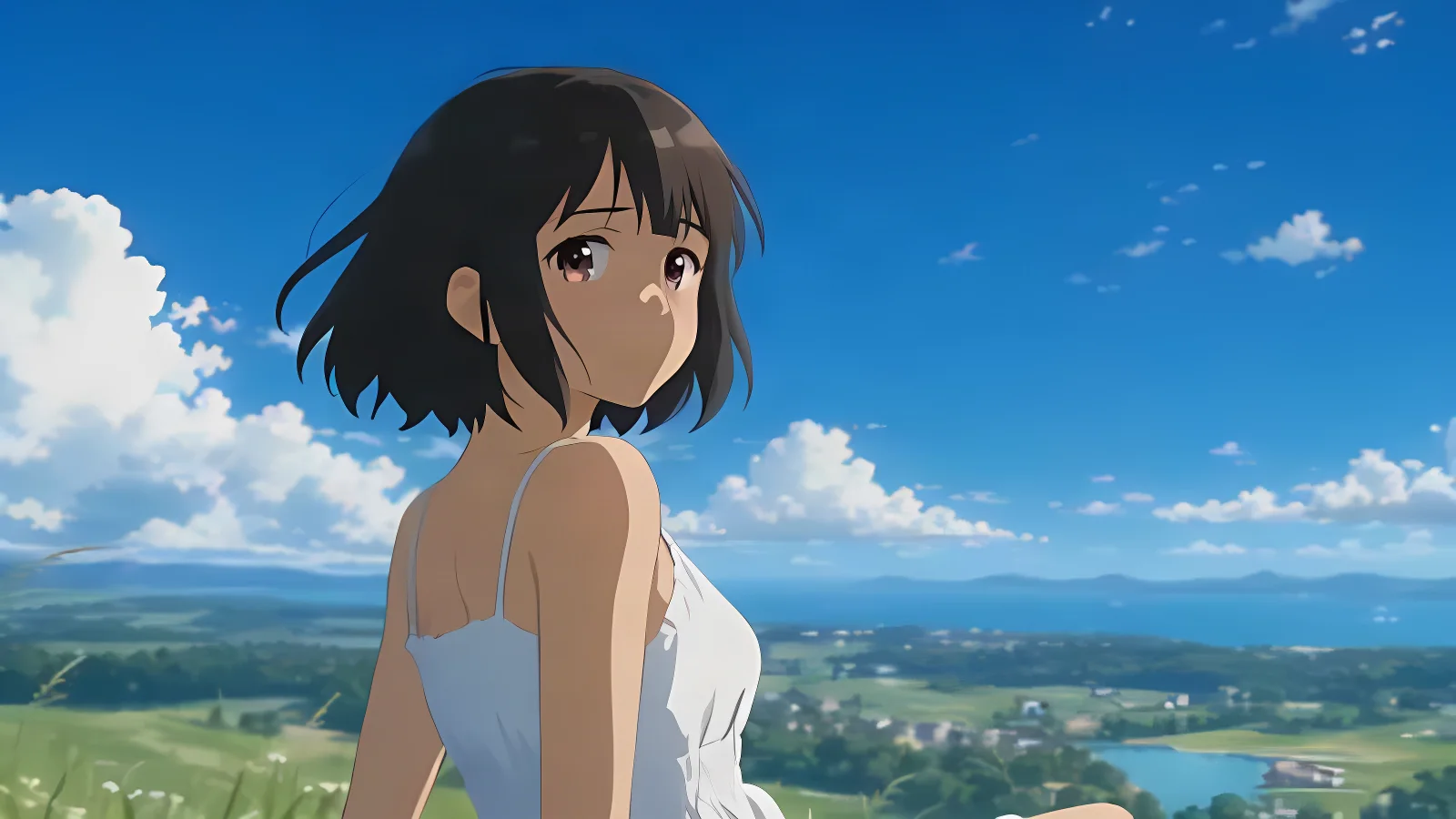
Anime 2× result showing the same girl, clouds and hilltop
Simulated low-resolution illustration of a girl on a grassy hill
BeforeAfter

Blue-sky anime still

An 800 × 450 illustration with simulated compression and softened edges was processed in Anime mode at 2× to produce a 1600 × 900 PNG.

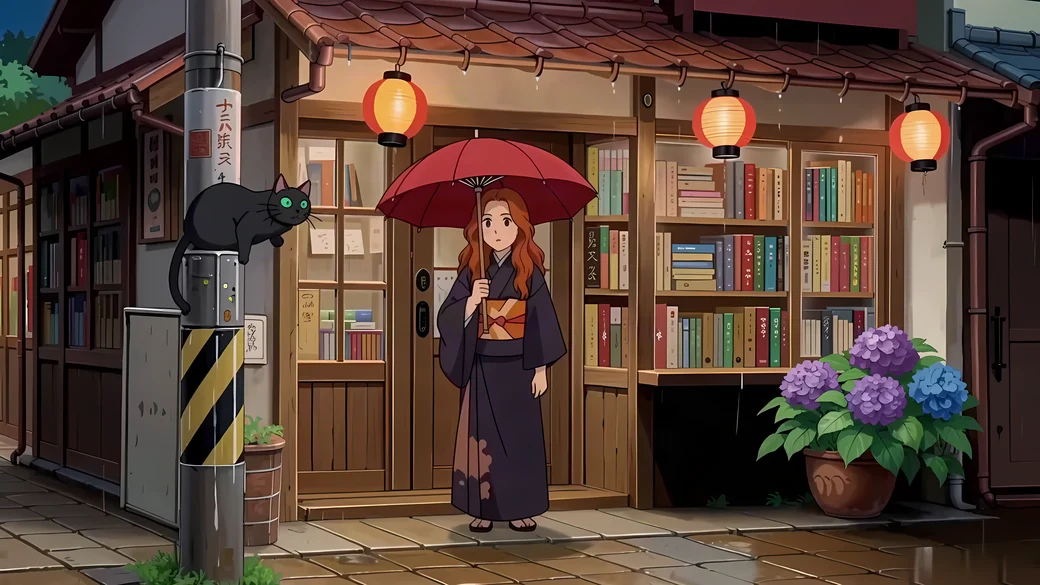
Anime 2× bookshop result showing window outlines and street reflections
Original illustration of a bookshop on a rainy street
BeforeAfter

Rain and light outside a bookshop

Anime 2× took this 1280 × 720 still to 2560 × 1440. Compare the quiet reflections and outlines around the shop windows.

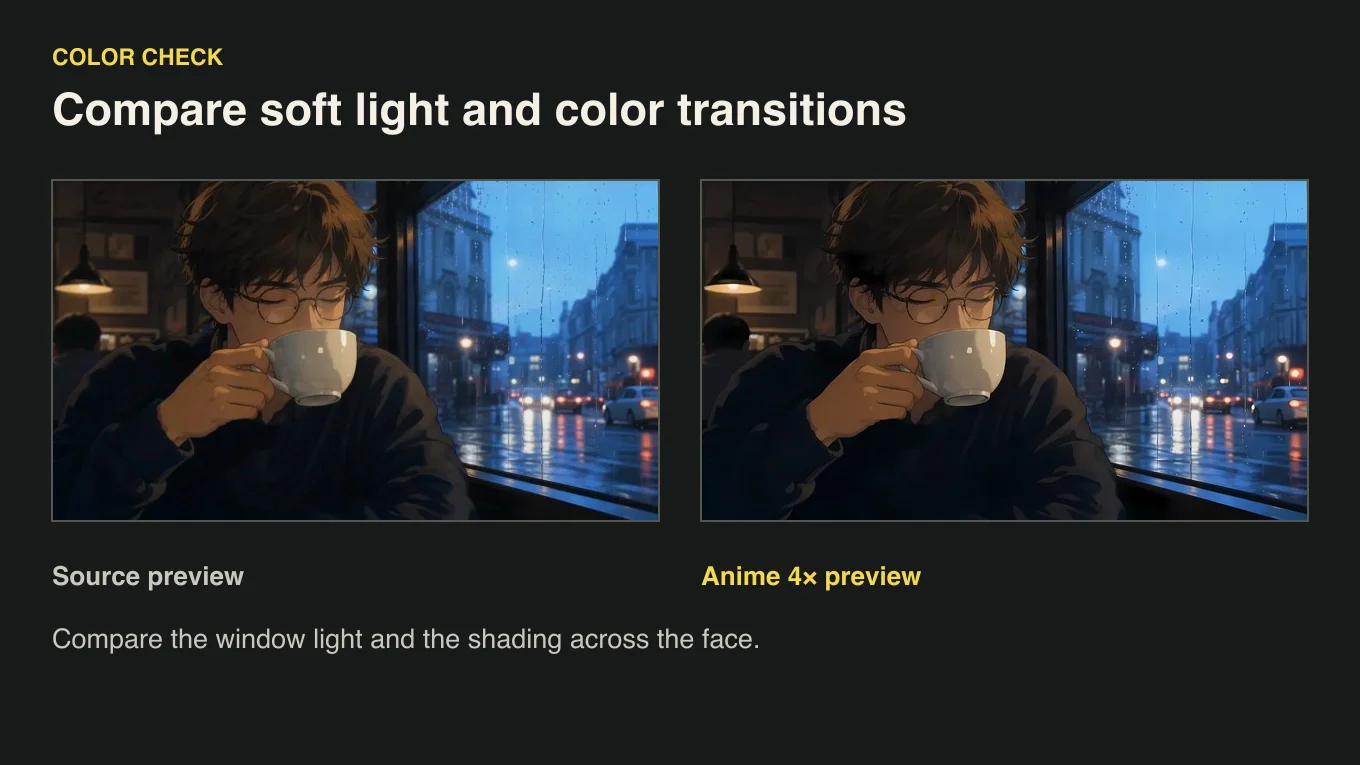
Anime 4× café portrait showing face shading and window light
Original illustrated portrait near a café window
BeforeAfter

Soft light on a café portrait

Anime 4× enlarged this 1280 × 720 illustration to 5120 × 2880. Look at the shading across the face and the light from the café window.

Anime 8× preview showing the waving hand and character outlines
Original illustration of a small cartoon character waving
BeforeAfter

A waving chibi character

Anime 8× enlarged this 1280 × 720 character illustration to 10240 × 5760. Inspect the outlines around the raised hand and clothing.

Features

Line art, color and size in the AI anime upscaler

See how the AI anime upscaler handles outlines, color fills and output dimensions. These crops use the same Anime 2× result so each feature shows a different part of the artwork.

Inspect the lines that define the character

Look at the hair outline and the eye in the comparison. Small breaks, halos and changes in line weight become easier to see when the art is enlarged. The AI anime upscaler gives you a larger copy, so you can inspect these details at the size you plan to use.

Upload your artwork
Matching crop of the hair outline and eyes after Anime 2× upscaling
Source crop showing the hair outline and eyes
Source cropAnime 2× crop

Compare flat colors and soft transitions

Anime art often uses solid colors next to gradients and soft shading. The AI anime upscaler lets you look at both in a single result, which matters when a bright edge meets a soft background. In the sky crop, compare the cloud edges and the blue around them before judging the result from the larger file size alone.

Upload your artwork
Original and Anime 4× café portrait side by side, showing soft light across the face

Pick the factor from your target canvas

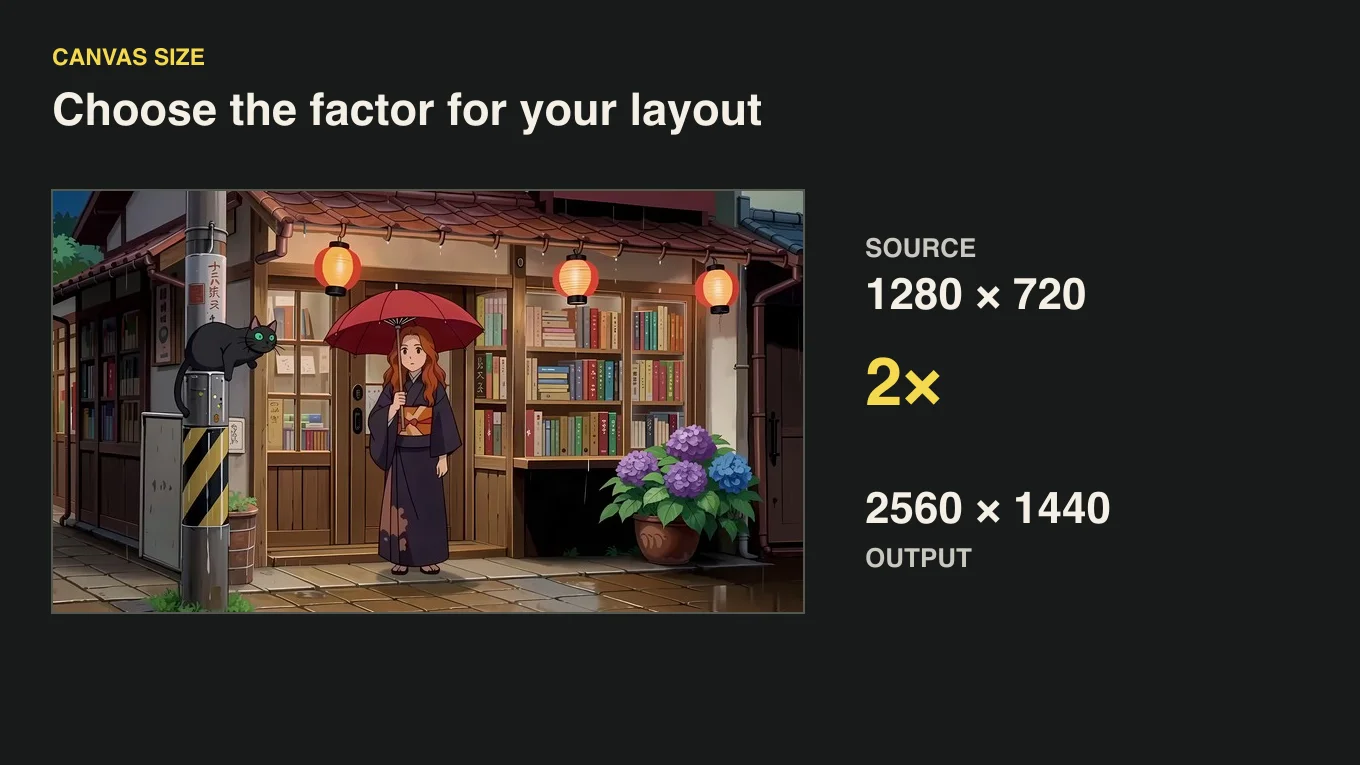
Each factor in the AI anime upscaler multiplies both dimensions. The 800 × 450 input pictured here becomes 1600 × 900 at 2×, with the same proportions. Decide how many pixels your layout needs, then read the workspace estimate and choose the smallest available factor that meets it.

Upload your artwork
Rainy bookshop illustration with the 1280 × 720 input, 2× factor and 2560 × 1440 canvas

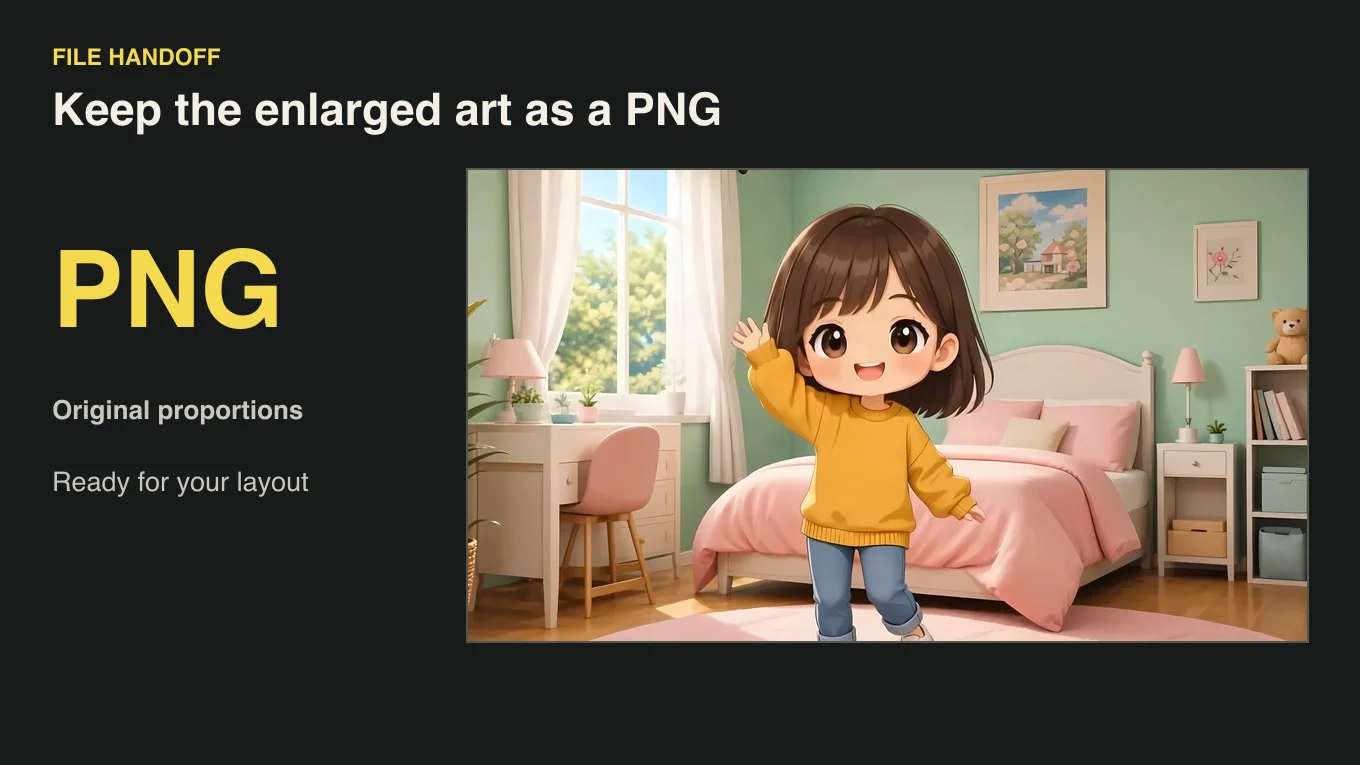
Keep a PNG for your layout

Download the enlarged still as a PNG. Before inserting it into a composition, look closely at fine texture and boundaries such as the grass and dress in the sample. This is also the moment to compare any small lettering or repeated patterns with the original.

Upload your artwork
Waving chibi character beside a PNG file handoff label

How it works

How to use the AI anime upscaler

Follow three steps with the AI anime upscaler, from a clean illustration or manga panel to an enlarged PNG ready to place in your own canvas.

The simulated low-resolution anime still on the left and its Anime 2× result on the right
  1. 1

    Upload a still image

    Choose a JPG, PNG or WebP up to 20 MB. For the AI anime upscaler, choose an original still or crop one panel from your manga page. Keep the source nearby as a reference for lettering or small line work.

  2. 2

    Choose an upscale factor

    Choose a factor offered by the AI anime upscaler. The workspace shows the new width and height so you can fit the illustration to a wallpaper, print layout or portfolio.

  3. 3

    Compare details and save the PNG

    Compare the original and enlarged artwork, especially line endings, flat colors and any small text. Download the PNG once you are happy with how the illustration reads, and save it alongside the source so you can return to the original framing later.

Use cases

When to use an anime or manga upscaler

Start with an existing illustration or panel in the AI anime upscaler. The right export size depends on whether the viewer will read a manga panel, see a full-screen still or browse a portfolio.

Manga panels and line drawings

For a wider layout, bring one scan or panel to the AI anime upscaler, such as a comic preview in a newsletter. Inspect ink contours and screentones at full size. Compare any lettering with the source before using the result, especially when speech bubbles are small.
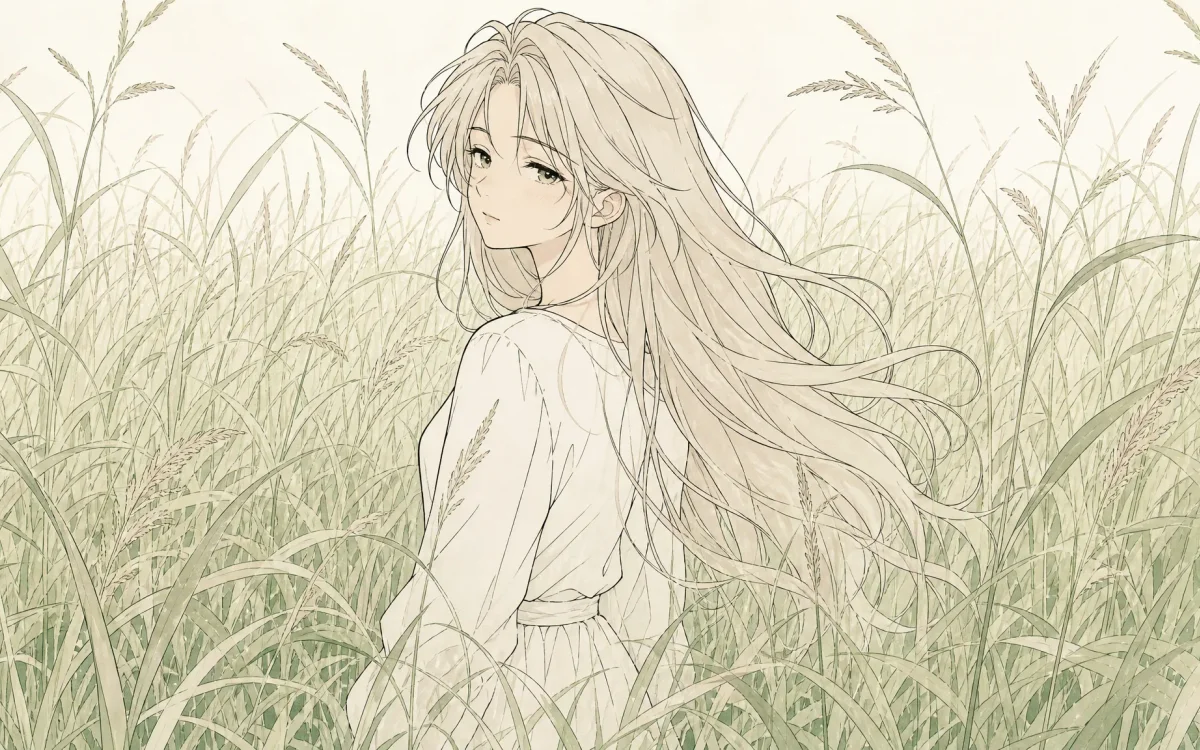
Fine ink outlines of a character with long pale hair in a meadow

Anime stills and wallpapers

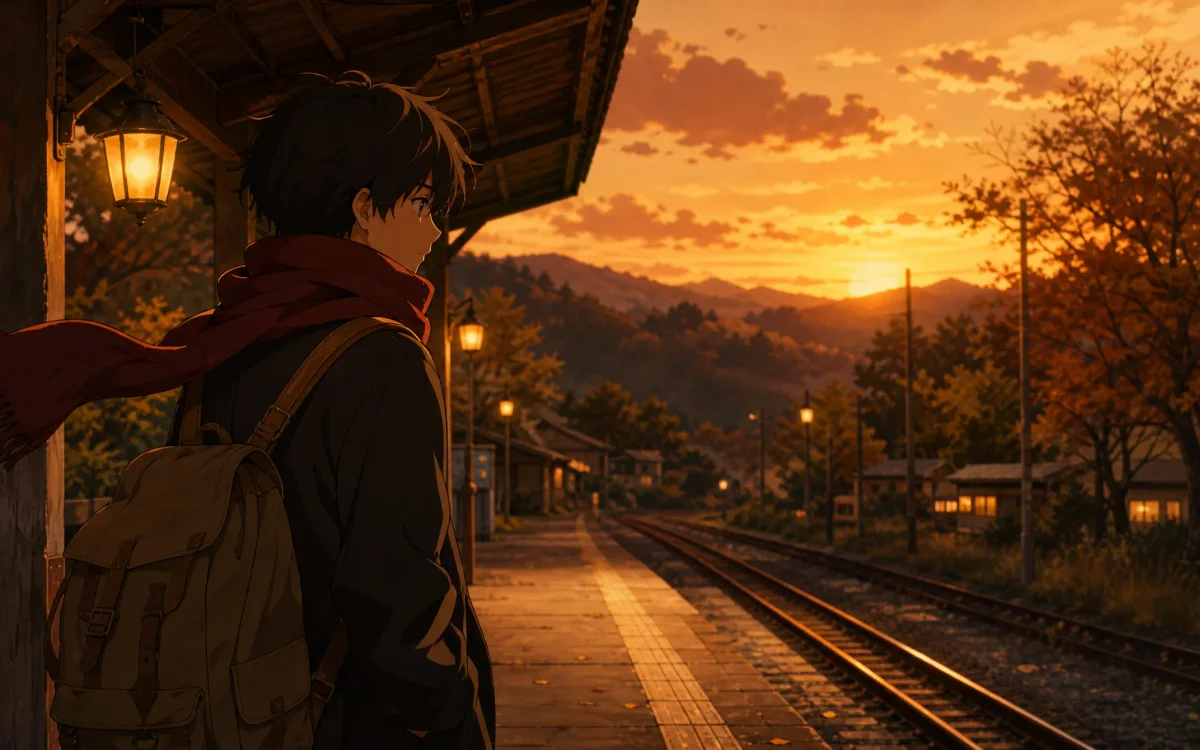
Start with the best still you have for a wallpaper or presentation. The AI anime upscaler keeps the image proportions as you enlarge it, giving you a larger frame to place on the screen before you decide how to crop the composition.

An anime traveler with a red scarf at a station at sunset

Character art and portfolio layouts

A larger copy from the AI anime upscaler gives you room for an existing character illustration for a portfolio page, reference board or convention handout. Check expressions and thin marks before placing the PNG next to other work in your layout.

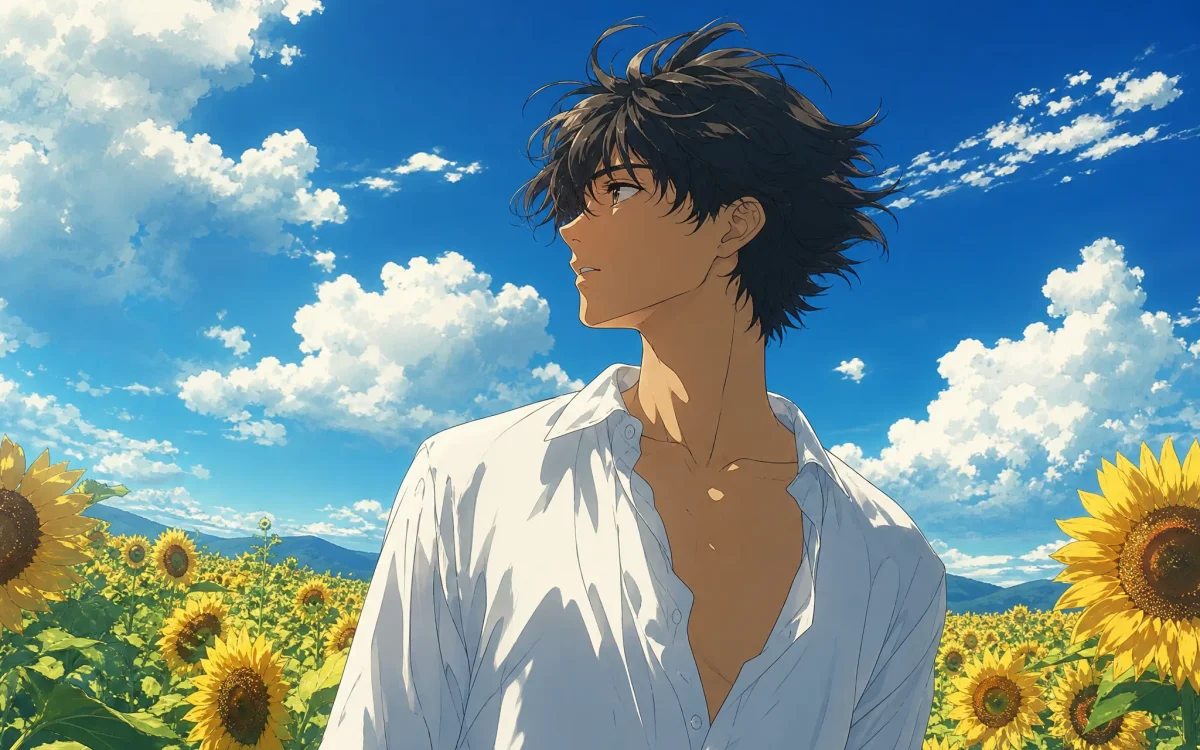
An anime character in a white shirt surrounded by sunflowers

Backgrounds and visual development

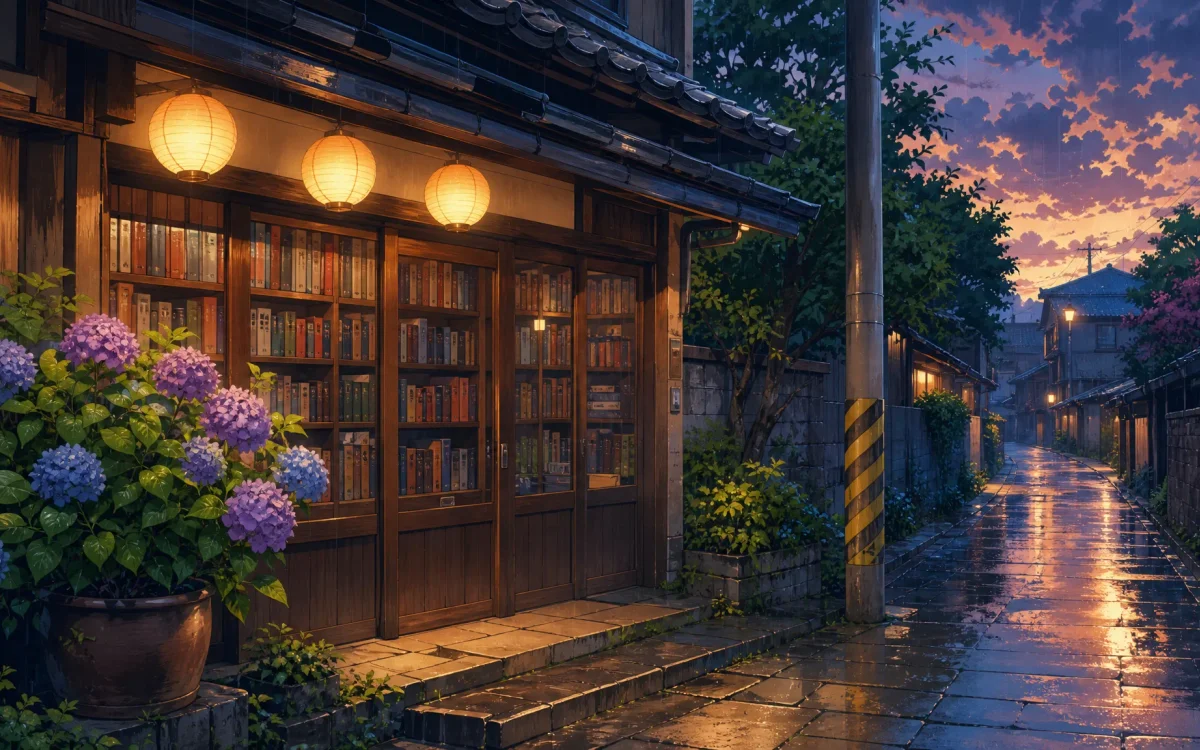
Bring a drawn street, interior or landscape into a wider composition. Fine window frames and repeating roof tiles are worth comparing with the source before using the PNG behind captions, characters or a second layer of artwork.

A drawn bookshop with lanterns and wet paving at dusk

Creator stories

How artists use the AI anime upscaler

“I used the AI anime upscaler on a forest background for my illustration portfolio. The larger PNG gave me room to show the whole composition on a wide page. I opened it beside the source and spent most of my time looking at the thin branches around the character's silhouette.”
Nina MatsudaBackground Illustrator

FAQ

AI anime upscaler FAQ

The AI anime upscaler works with static artwork. Pick a file format and a factor for your canvas, then compare the details that matter for the artwork.

An AI anime upscaler makes an existing still image larger with a model for illustrations. Compare the original and output to see how it handles outlines, color fills and fine details.

Reviewed by Super Resolution TeamUpdated

Related tools

4K conversion and sharpening to pair with the AI anime upscaler

Choose the 4K converter to target a fixed long edge or the sharpener to adjust an image at its current size.

Enlarge your artwork with the AI anime upscaler

Upload a still, manga panel or illustration with the AI anime upscaler. Choose a factor for your canvas and compare the line work before you save the larger PNG.

Upload artwork