


BLACK FRIDAY

2× credits on new plans, plus 2× packs for subscribers. Ends Dec 1.

Ends Dec 1, 11:59 pm PTGet 2× credits

Free Image Sharpener

Sharpen images online for free: choose Light, Medium or Strong, compare on a live slider and download a sharper PNG or JPG, with no sign-up and no watermark.

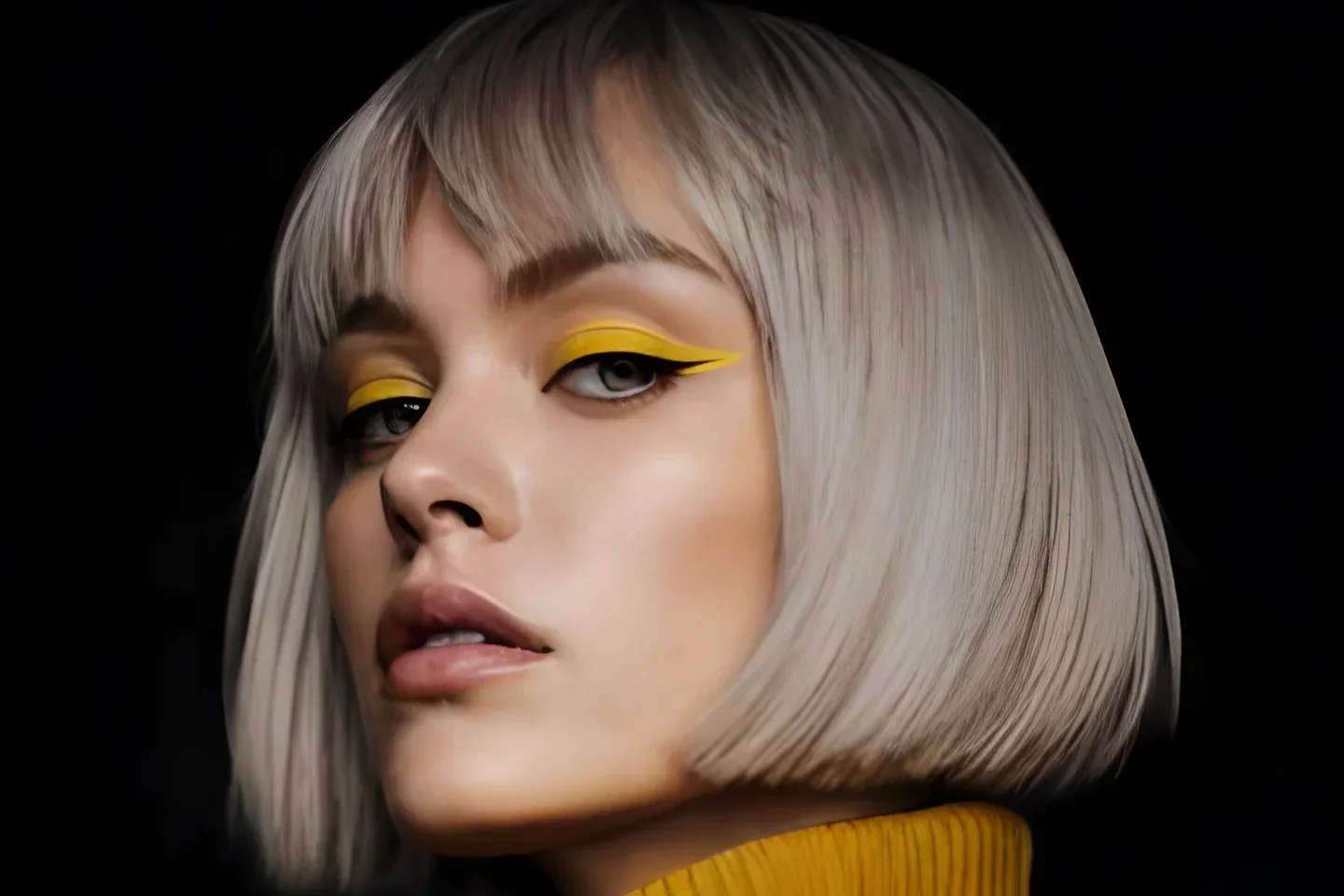
The same portrait after Strong sharpening, with crisper lashes, brows and freckles
A soft-focus close-up portrait of a woman with a dark bob and freckles
OriginalSharpened · Strong
Instant preview, no upload
  • 100%free
  • Nosign-up
  • Nowatermark
  • Original-size PNG or JPG

Before and after

Image sharpener results: original and sharpened

Each pair shows a soft photo next to the version this image sharpener made from it, so you can see how edges, text and textures gain definition.

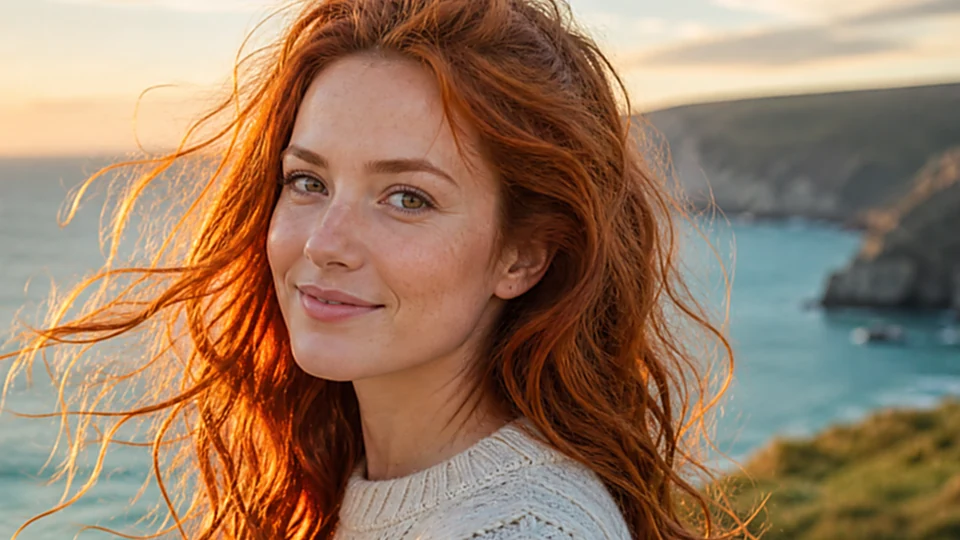
Medium sharpening result showing loose hair strands and the knit sweater
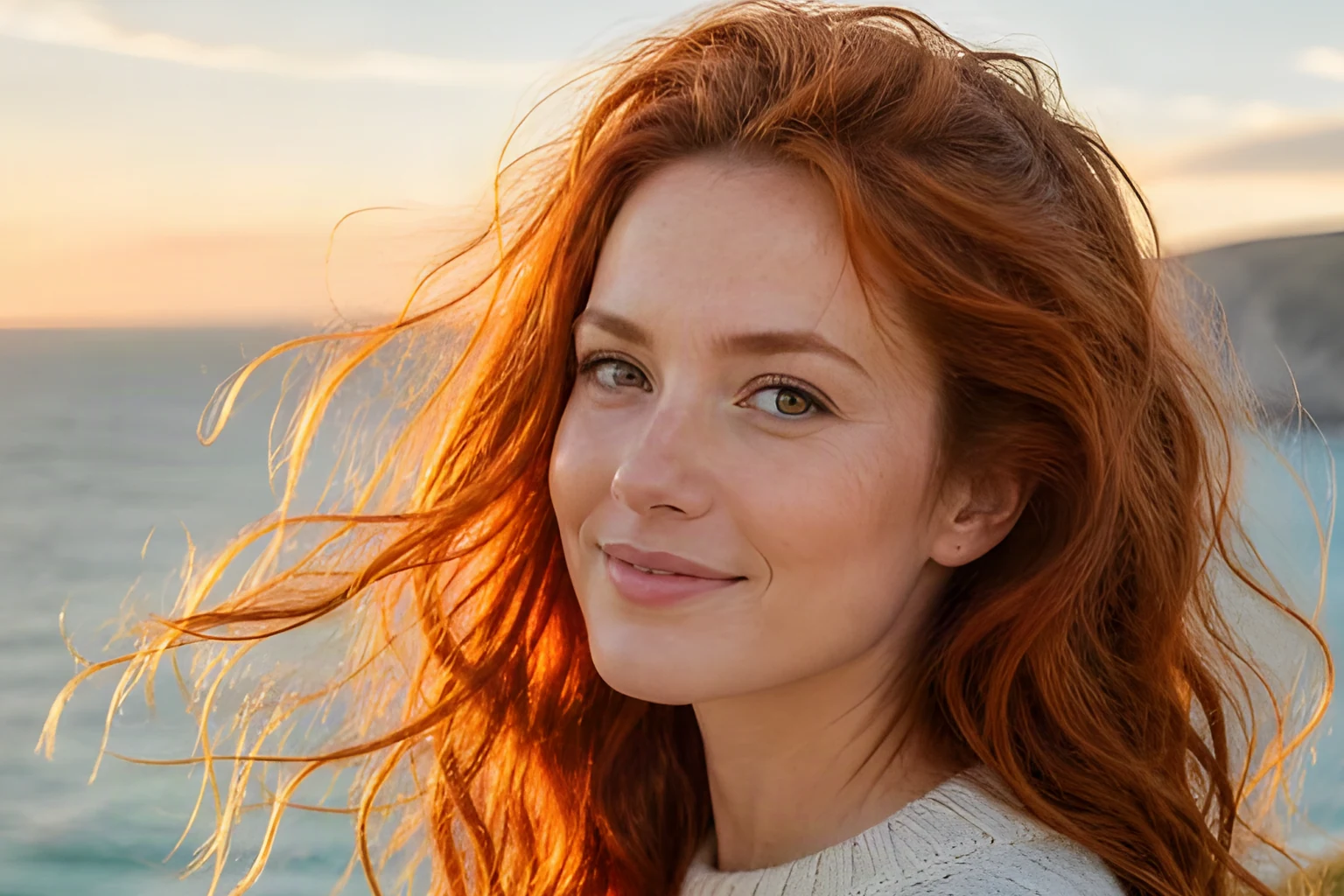
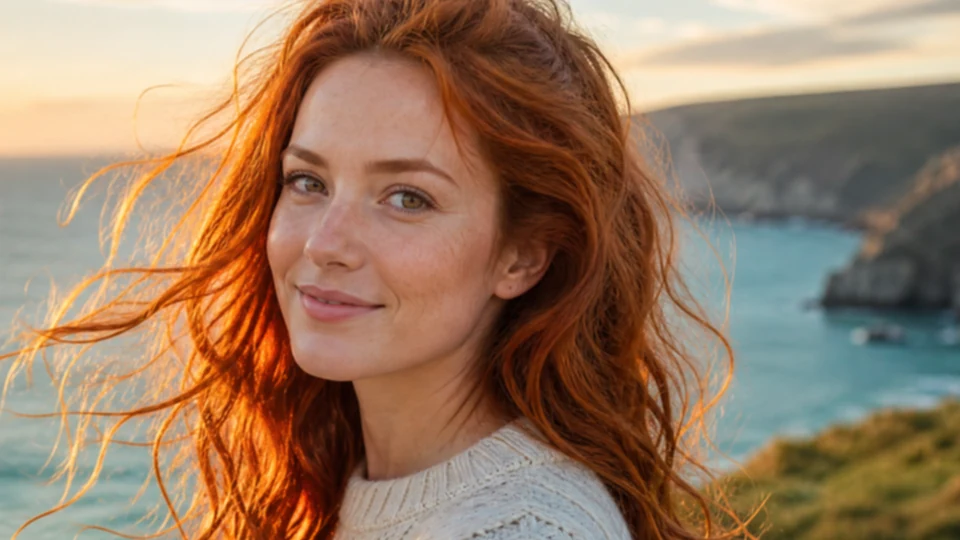
Soft photo of a copper-haired woman on a sea cliff
BeforeAfter

Medium on a windswept portrait

Loose strands of hair and the knit sweater gain definition with the Medium preset.

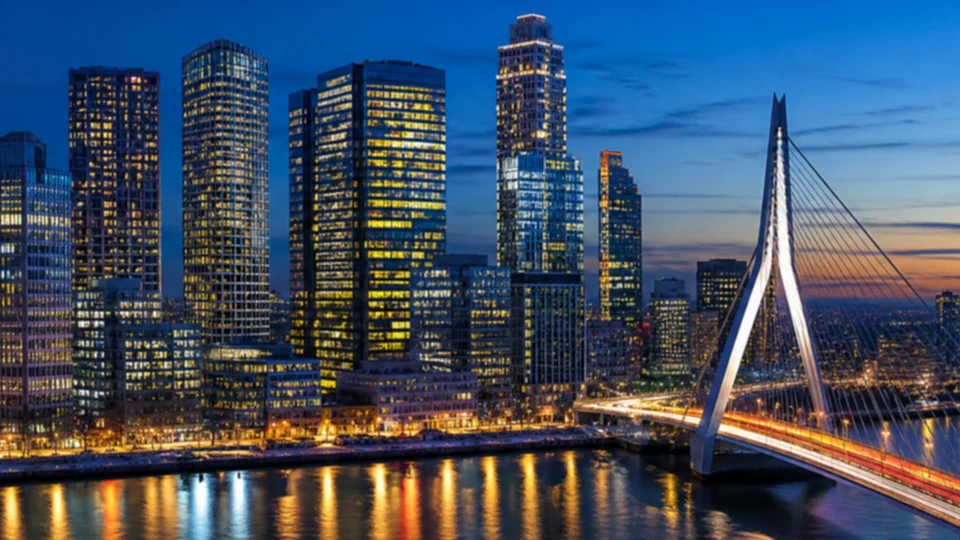
Medium sharpening result showing the office windows and bridge cables
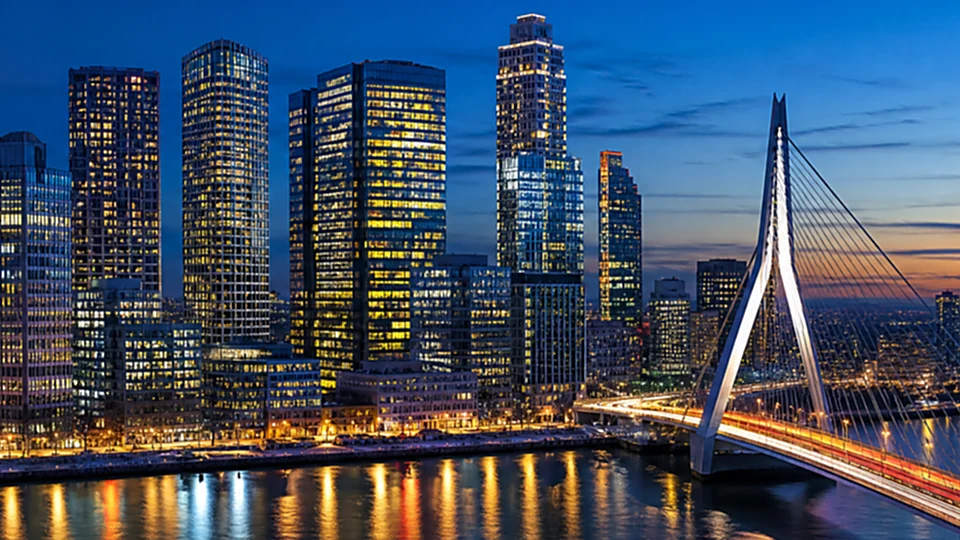
Original night cityscape with a cable-stayed bridge
BeforeAfter

Medium on a city at night

Window grids and bridge cables read clearly after a Medium pass.

Light sharpening result showing the lashes, brows and freckles
Soft close-up of a woman with a dark bob and freckles
BeforeAfter

Light on a close-up portrait

A gentle Light pass lifts lashes and brows while skin stays smooth.

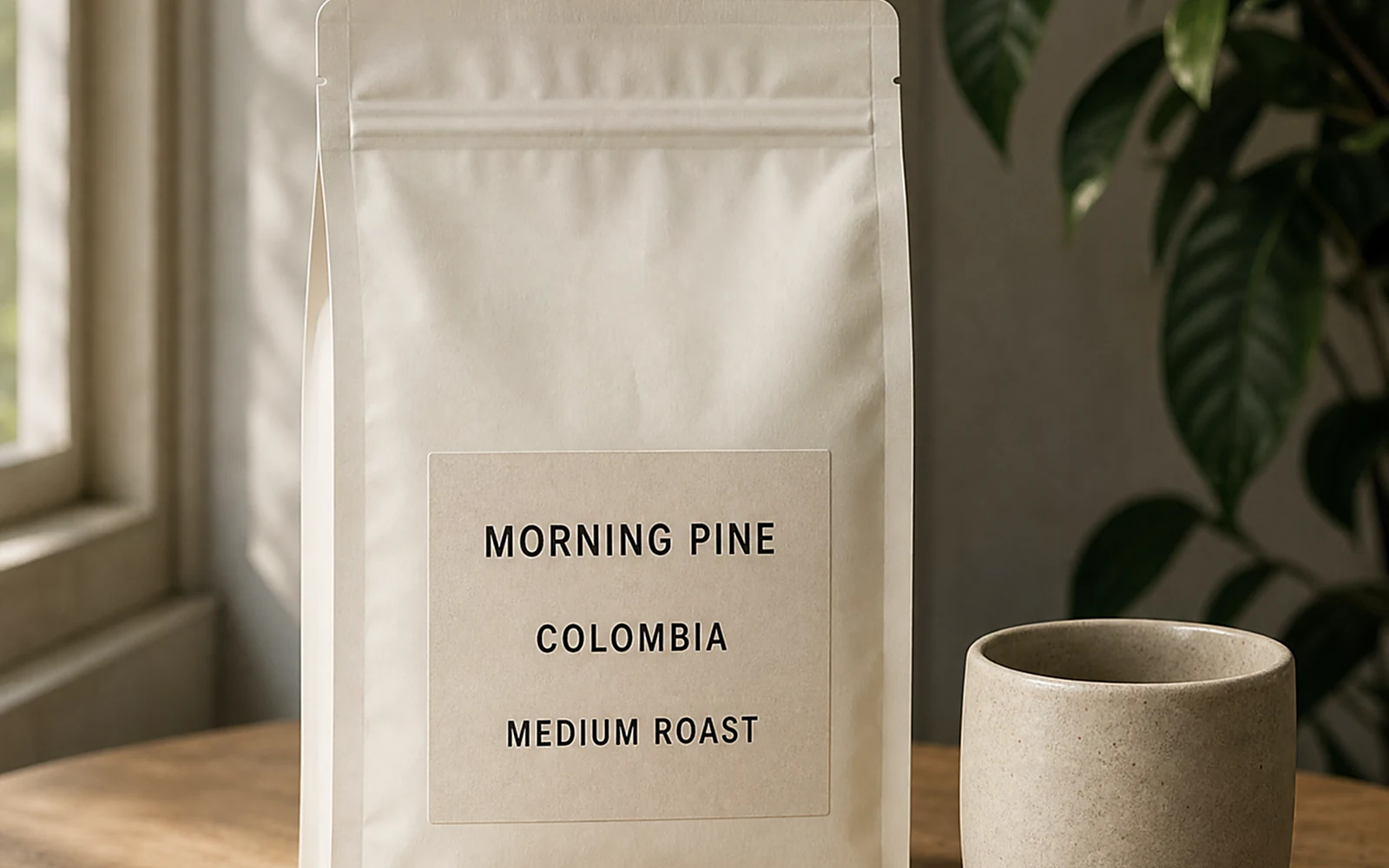
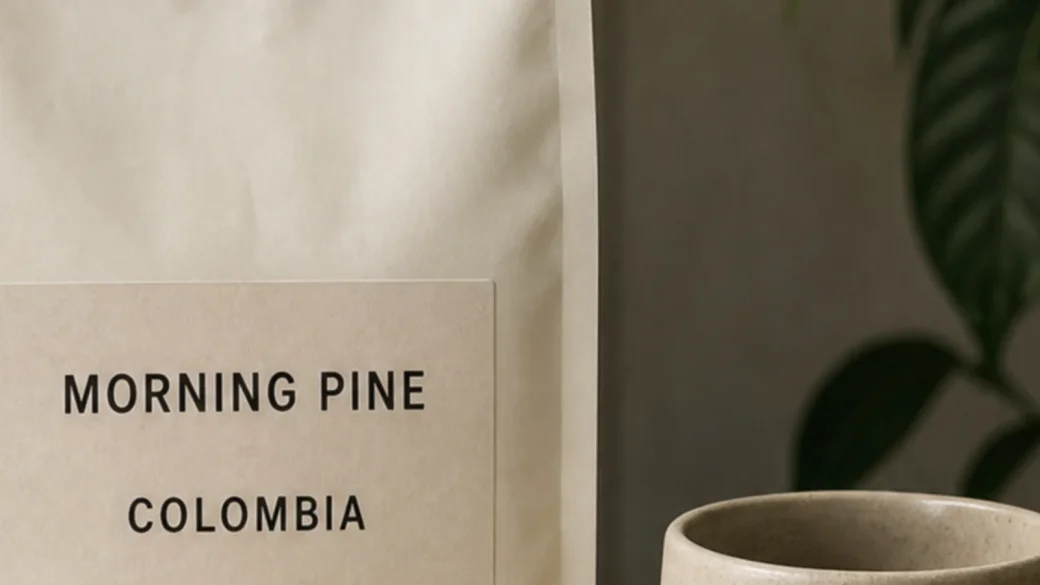
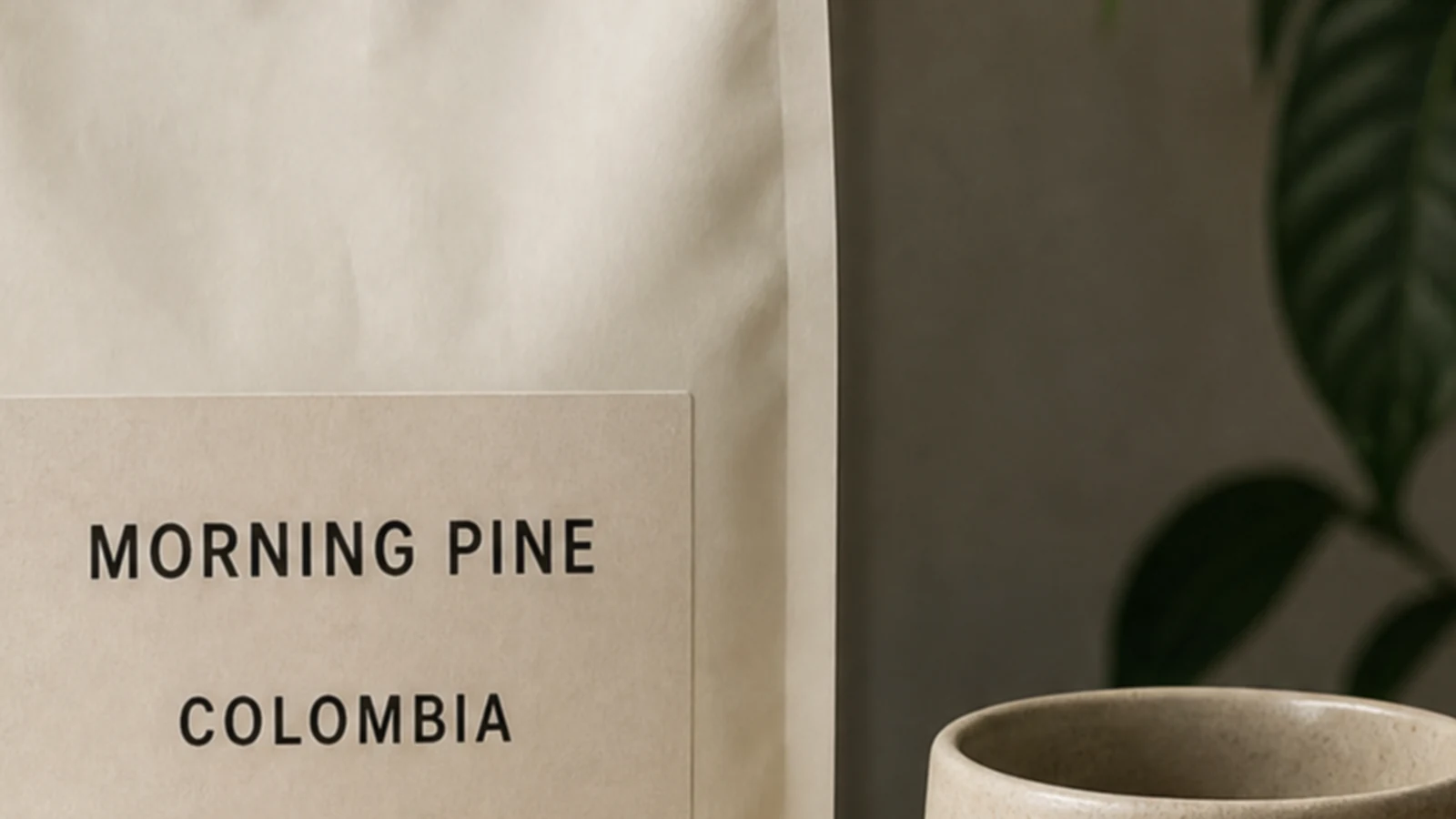
Strong sharpening preview showing the same coffee bag lettering
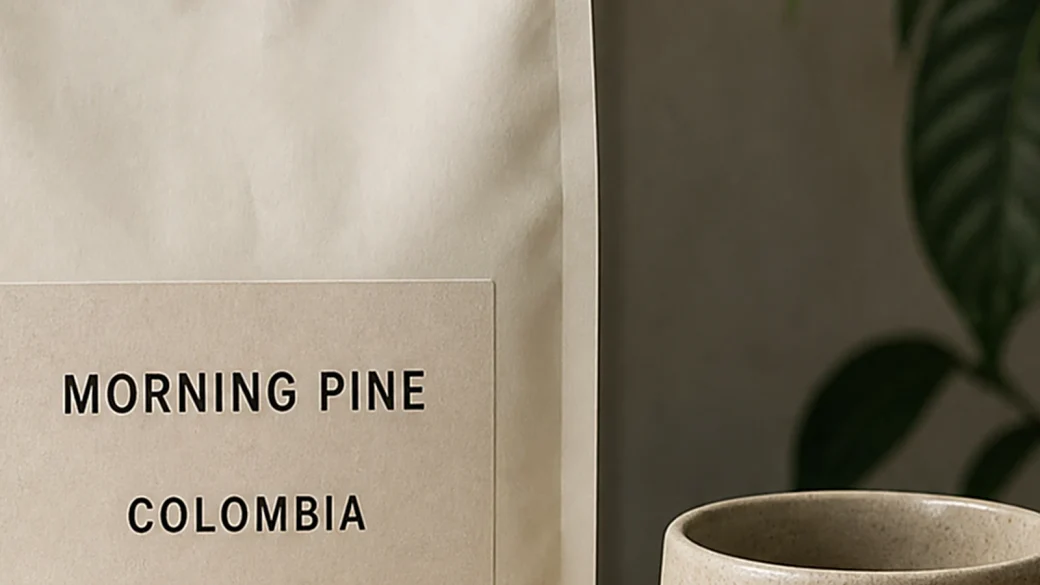
Soft close-up of small lettering on a coffee bag
BeforeAfter

Strong on a coffee label

The Strong preset makes the small print easier to read. The output keeps the original pixel dimensions.

Features

An image sharpener with presets, fine-tuning and a live preview

Sharpen images with one click, then dial in exactly as much image sharpening as your photo needs.

Light, Medium and Strong presets

Most photos need only one click. Light adds a gentle lift for portraits and skin, Medium brings out detail in everyday photos and product shots, and Strong gives soft scans, screenshots and text the most definition. Switch between them and the preview updates right away.

Sharpen an Image
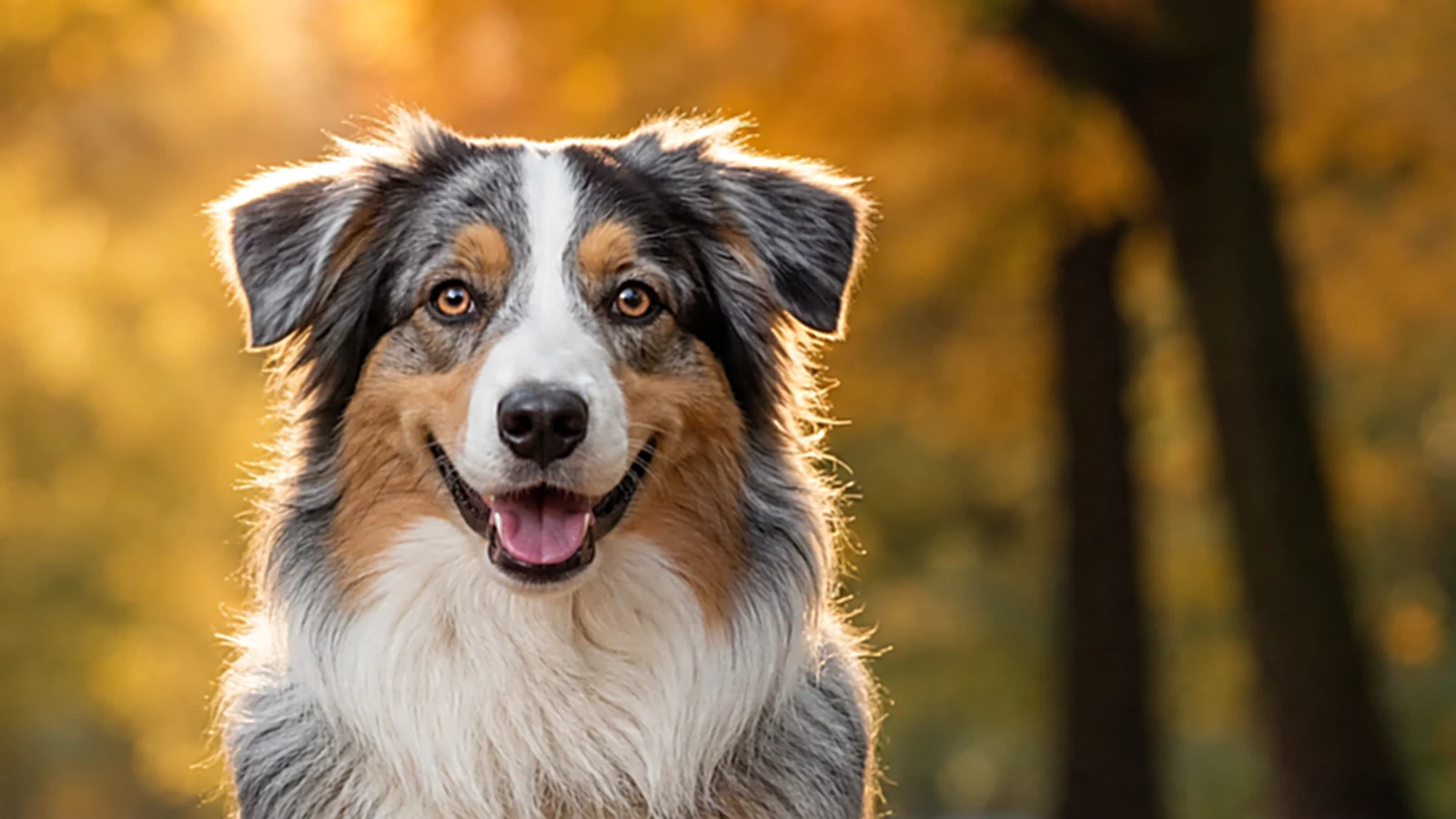
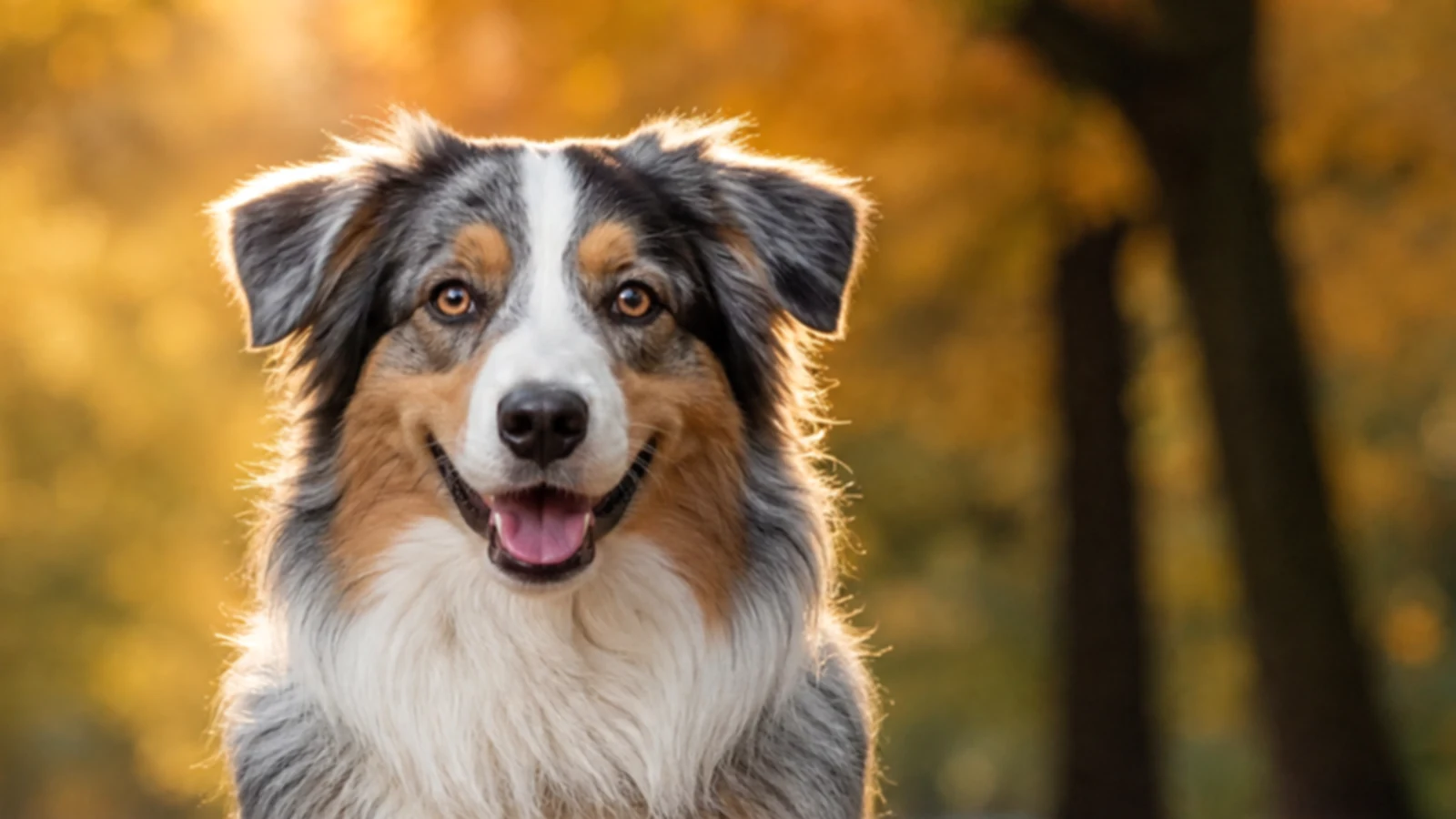
The same photo after Medium sharpening, with crisper fur and eyes
A slightly soft photo of an Australian Shepherd in an autumn park
OriginalMedium

Fine-tune amount, radius and noise threshold

When a preset is close but not quite right, open Fine-tune in the image sharpener. Amount sets how strongly edges are lifted, radius sets how wide those edges are, and the noise threshold leaves smooth areas such as sky and skin untouched, so the photo looks sharper without grainy noise.

Sharpen an Image
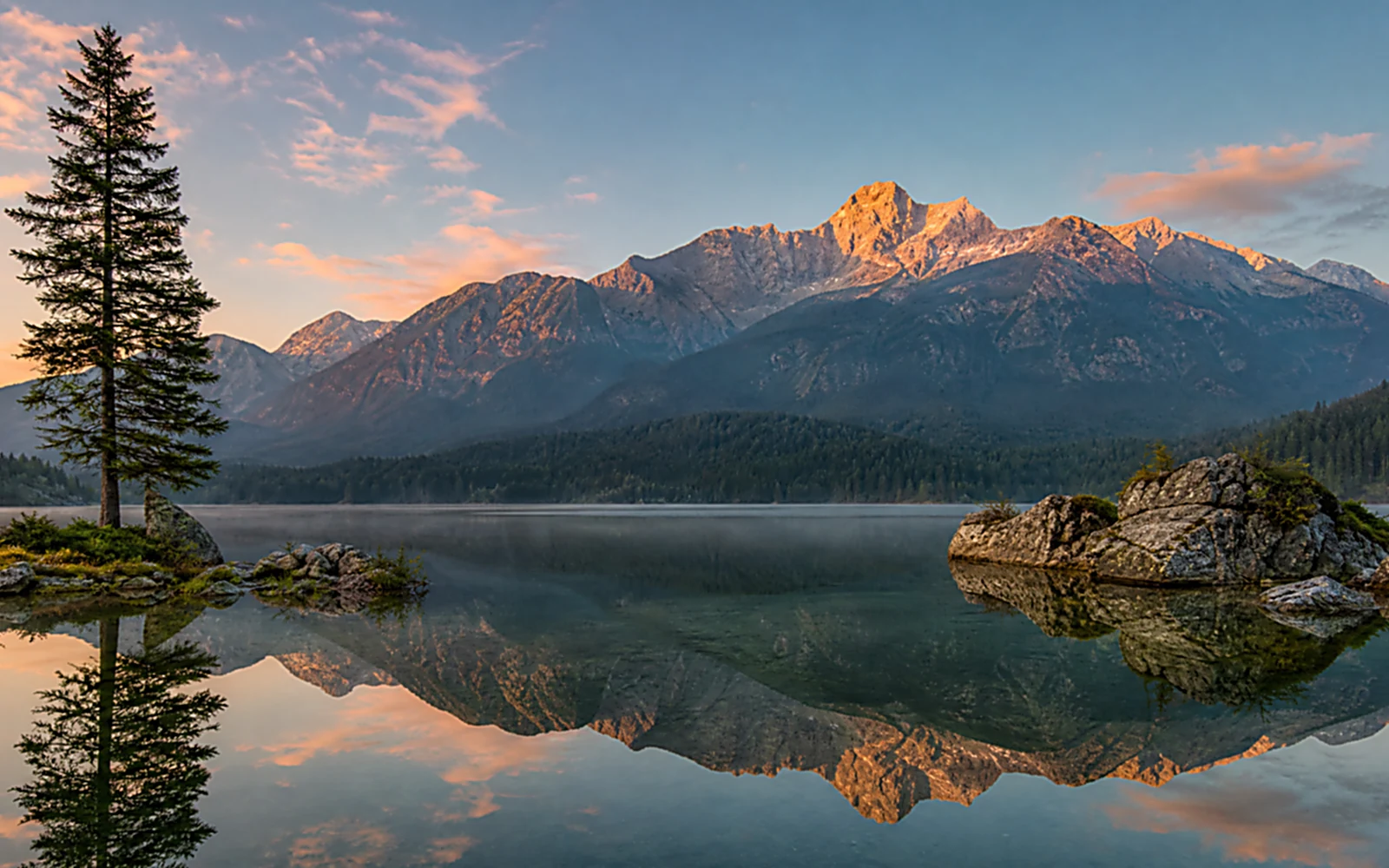
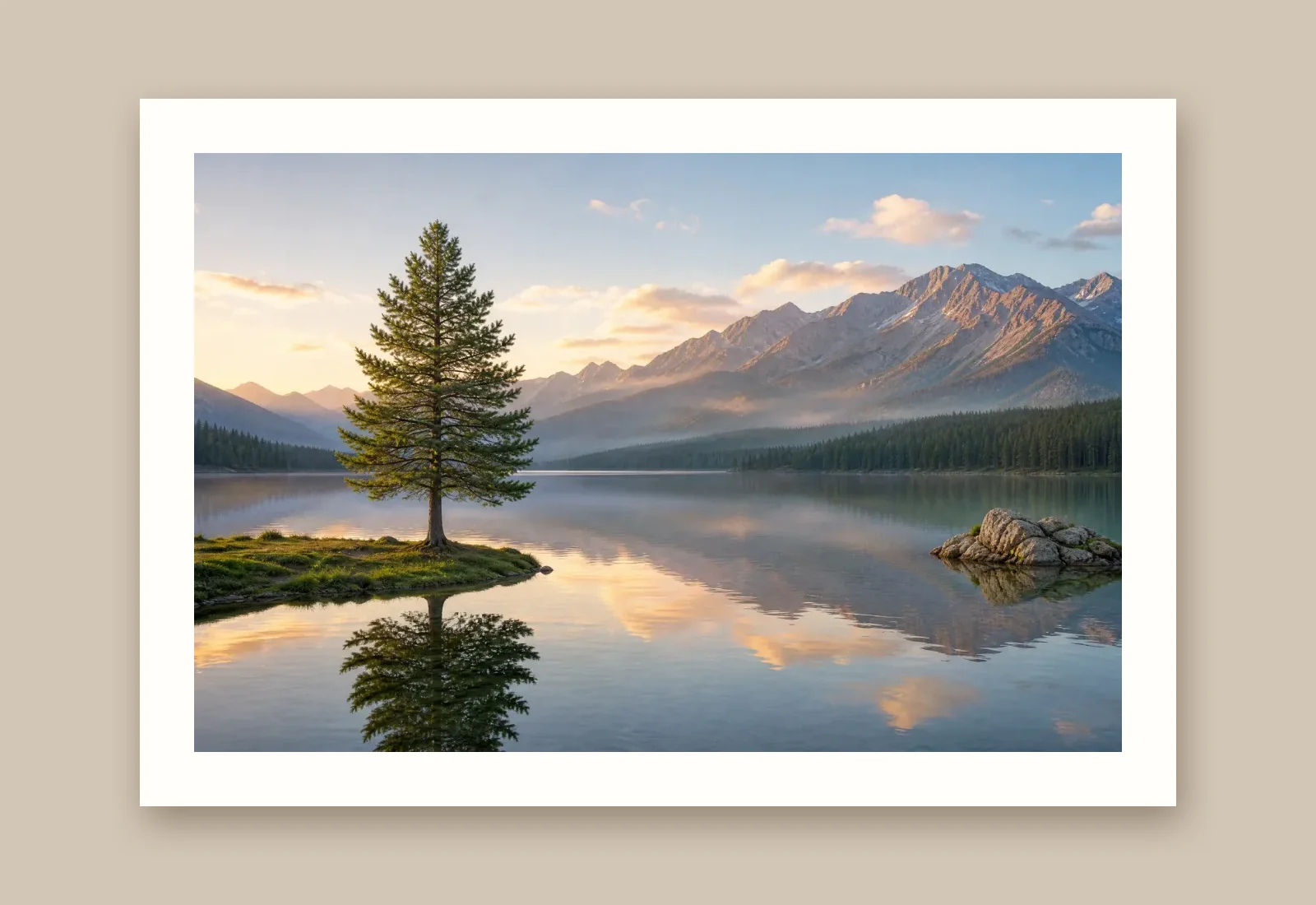
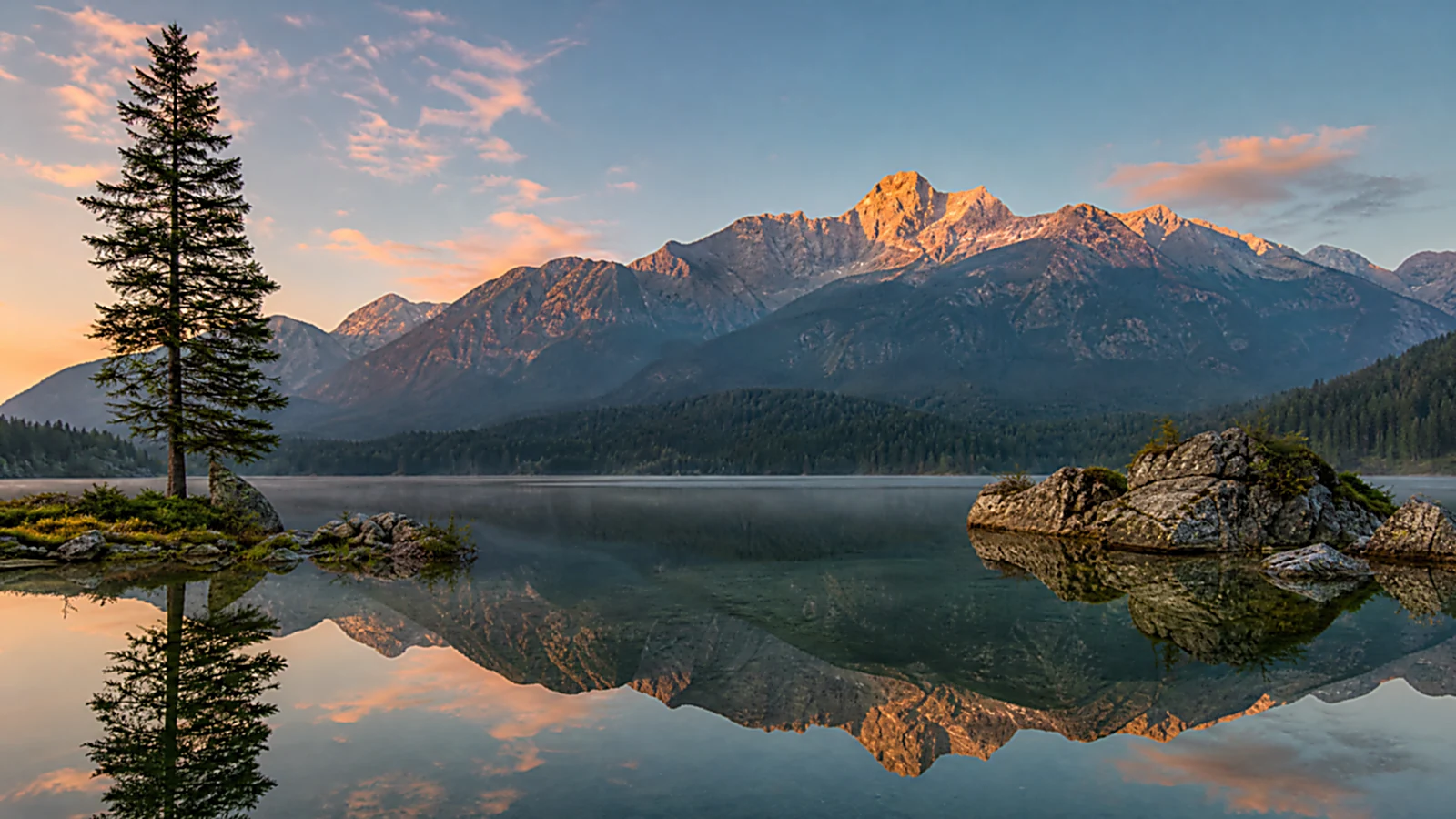
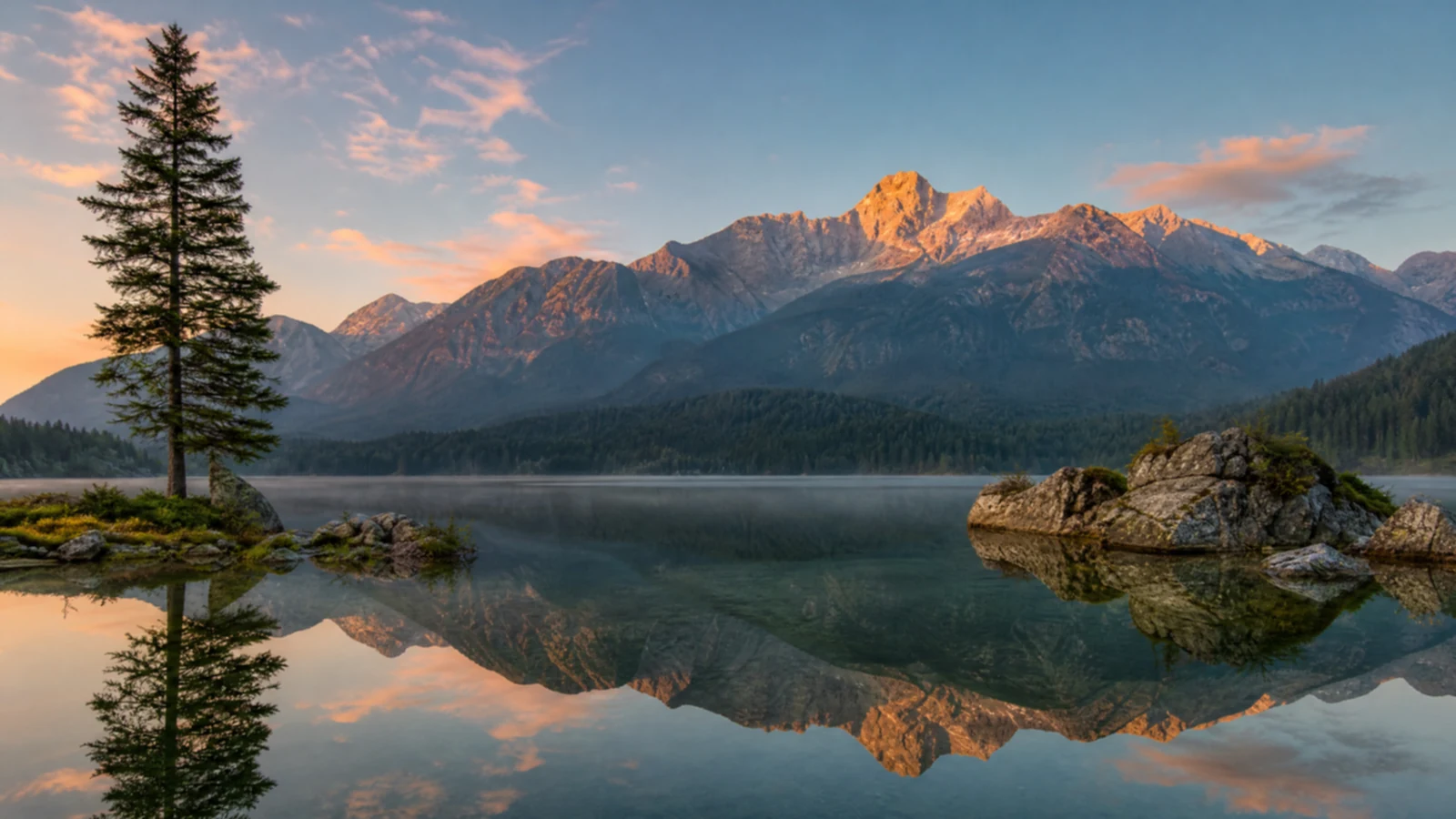
The same landscape sharpened with a wider radius and a noise threshold that keeps the sky smooth
A slightly soft photo of an alpine lake with mountains and a pine tree
OriginalFine-tuned

A live before-and-after slider

Drag across the image to compare the original with the version the image sharpener made, at any point. Every change to a preset or slider shows up in the preview within a moment, so you can judge eyes, lettering and fine textures before you download anything.

Sharpen an Image
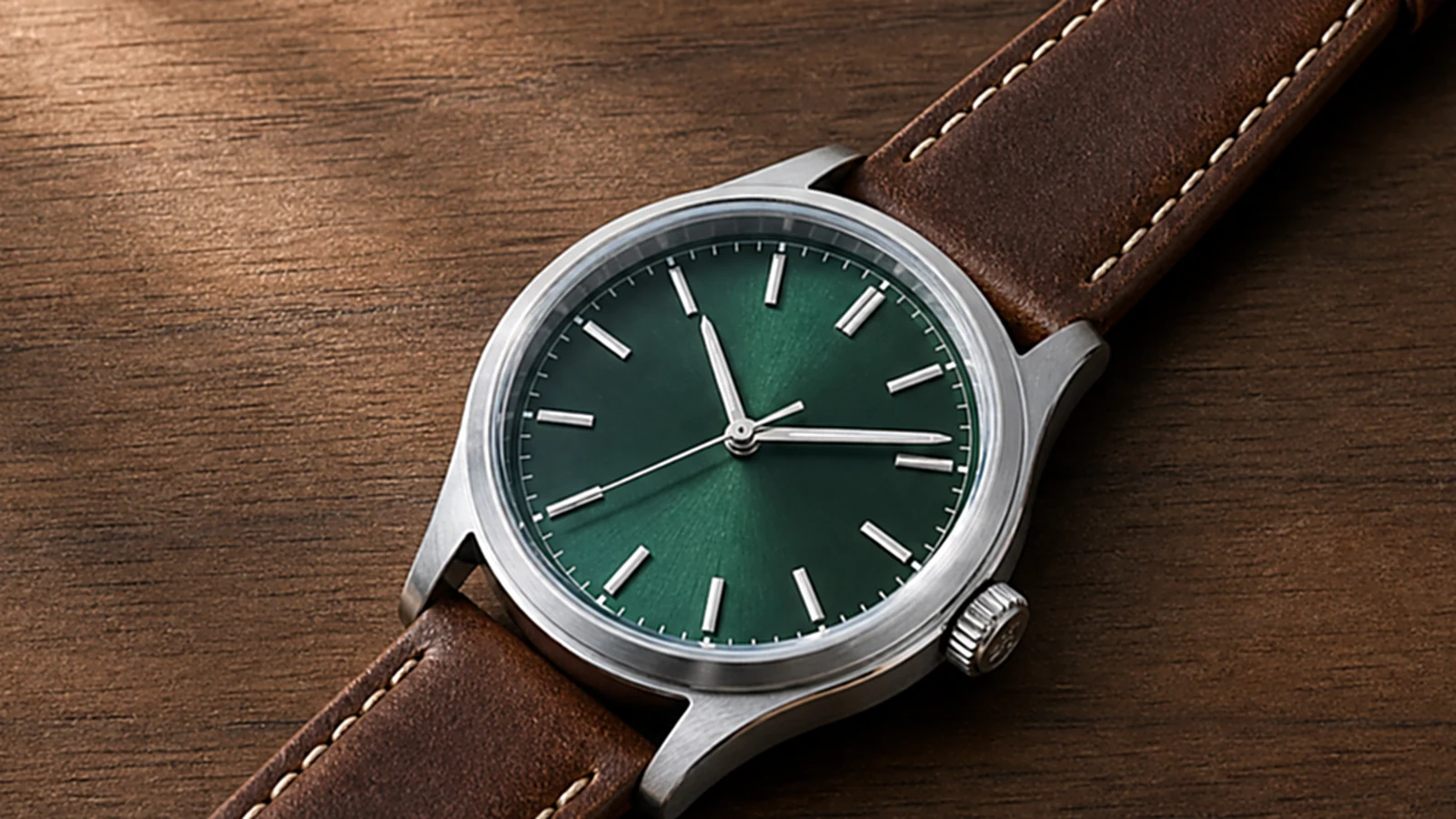
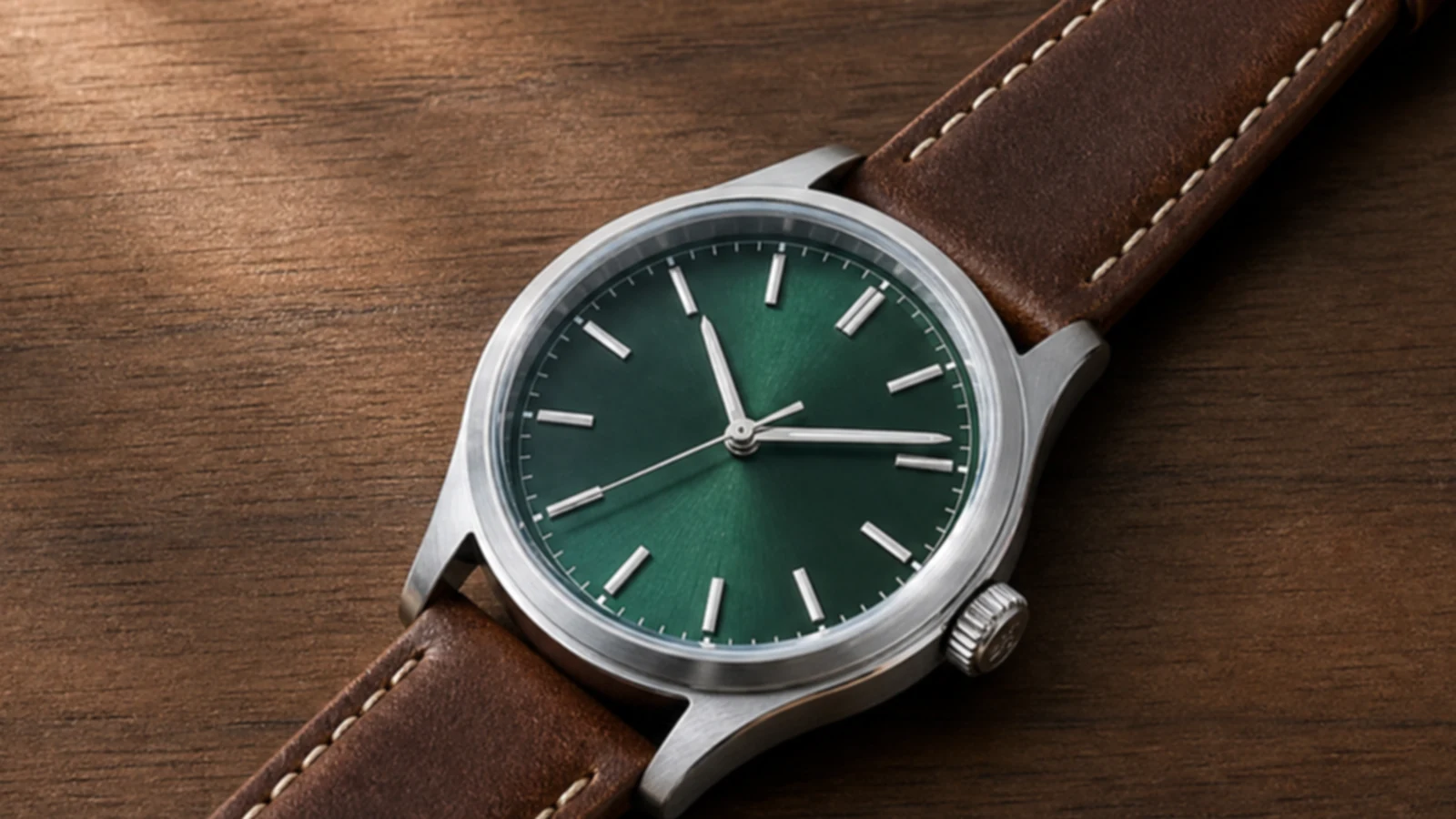
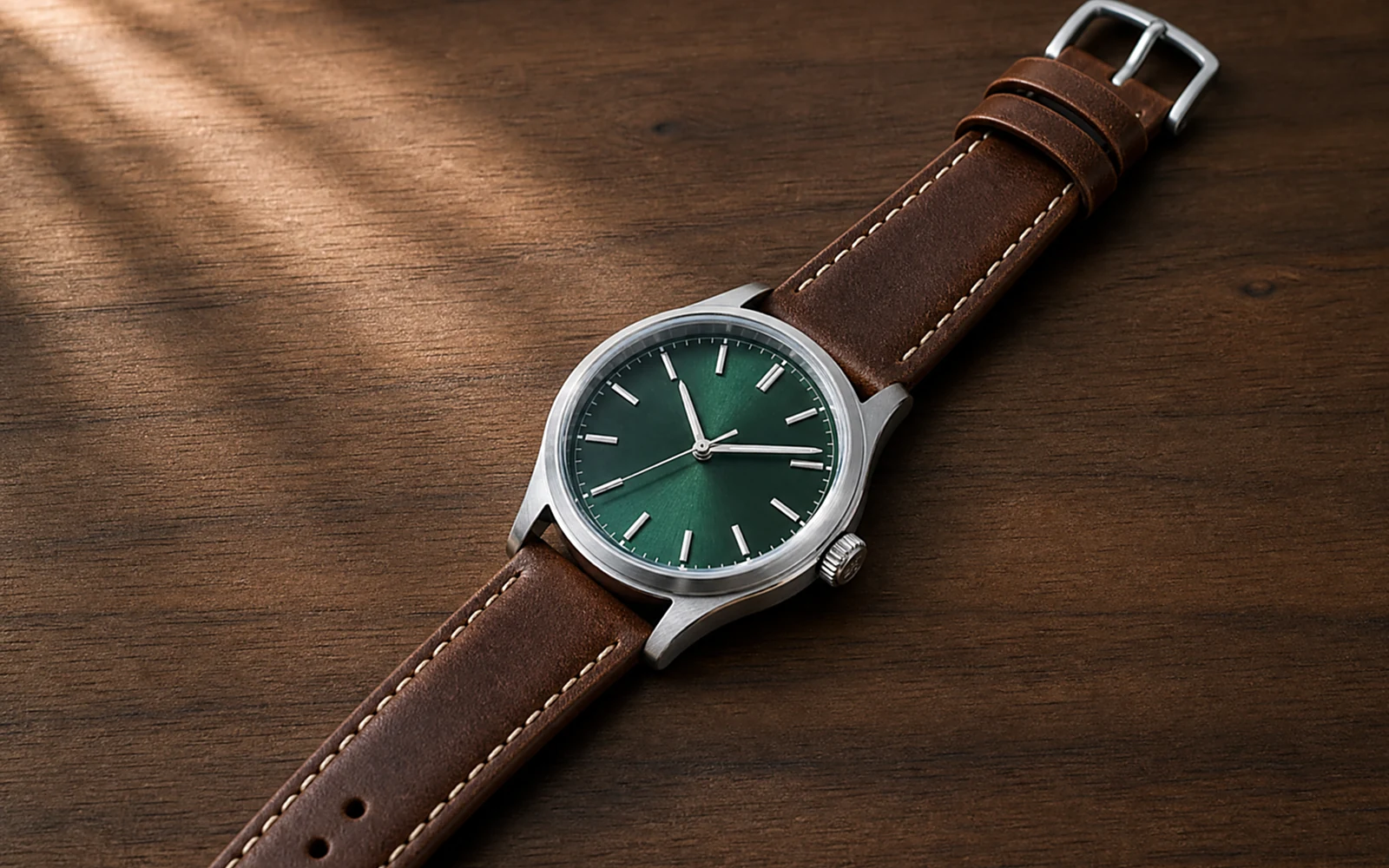
The same watch after Medium sharpening, with a crisper dial, hands and leather stitching
A slightly soft product photo of a watch with a green dial
OriginalMedium

Free to use, with no sign-up and no watermark

The image sharpener is free to use as often as you like: no account, no credits and no watermark on the PNG or JPG you download. Because sharpening runs on your own device, there is no upload to wait for, the preview responds as you adjust the settings and your photo stays with you.

Sharpen an Image
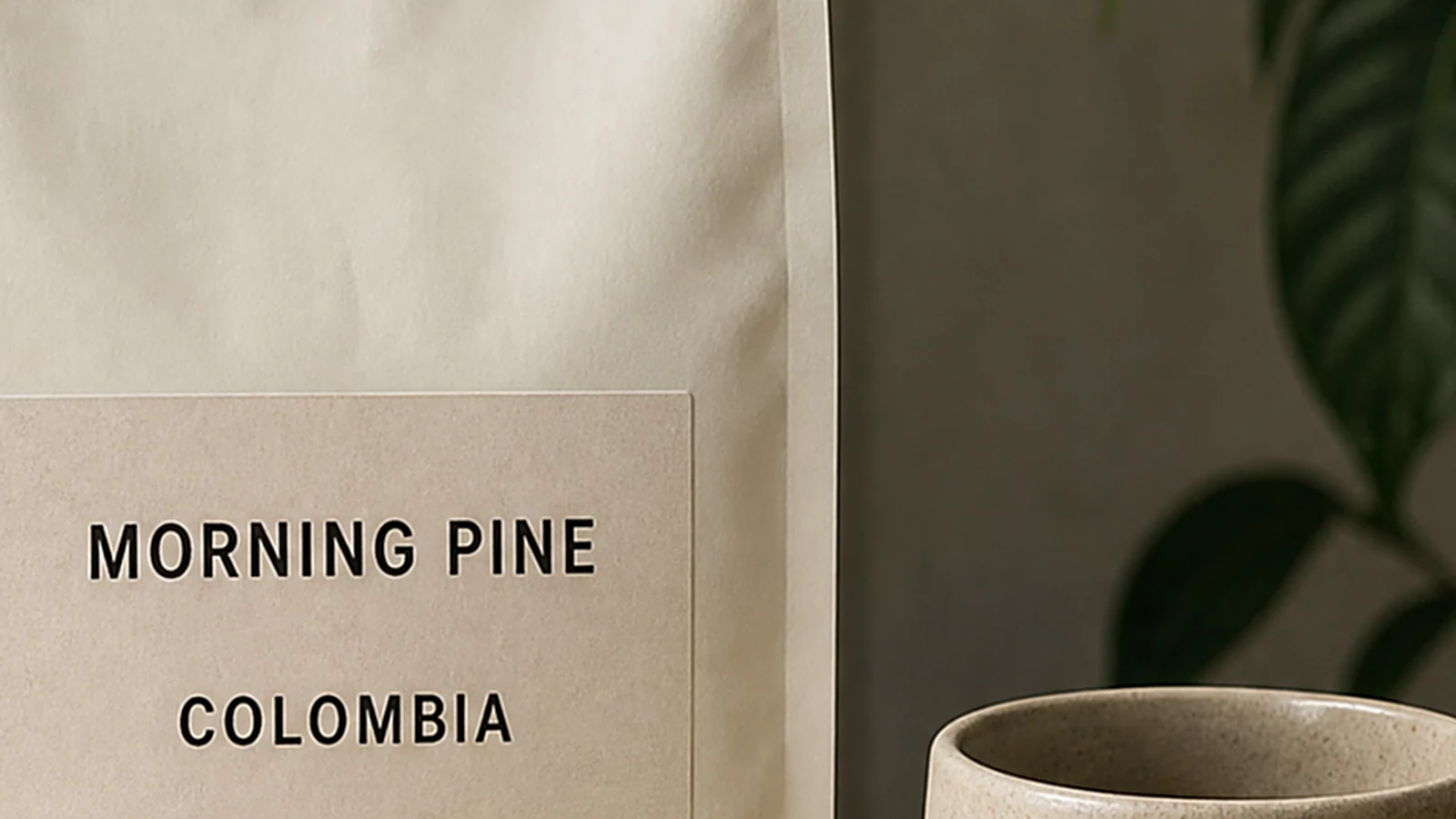
The same label after Strong sharpening, with crisp lettering
A slightly soft photo of a coffee bag label
OriginalStrong

How it works

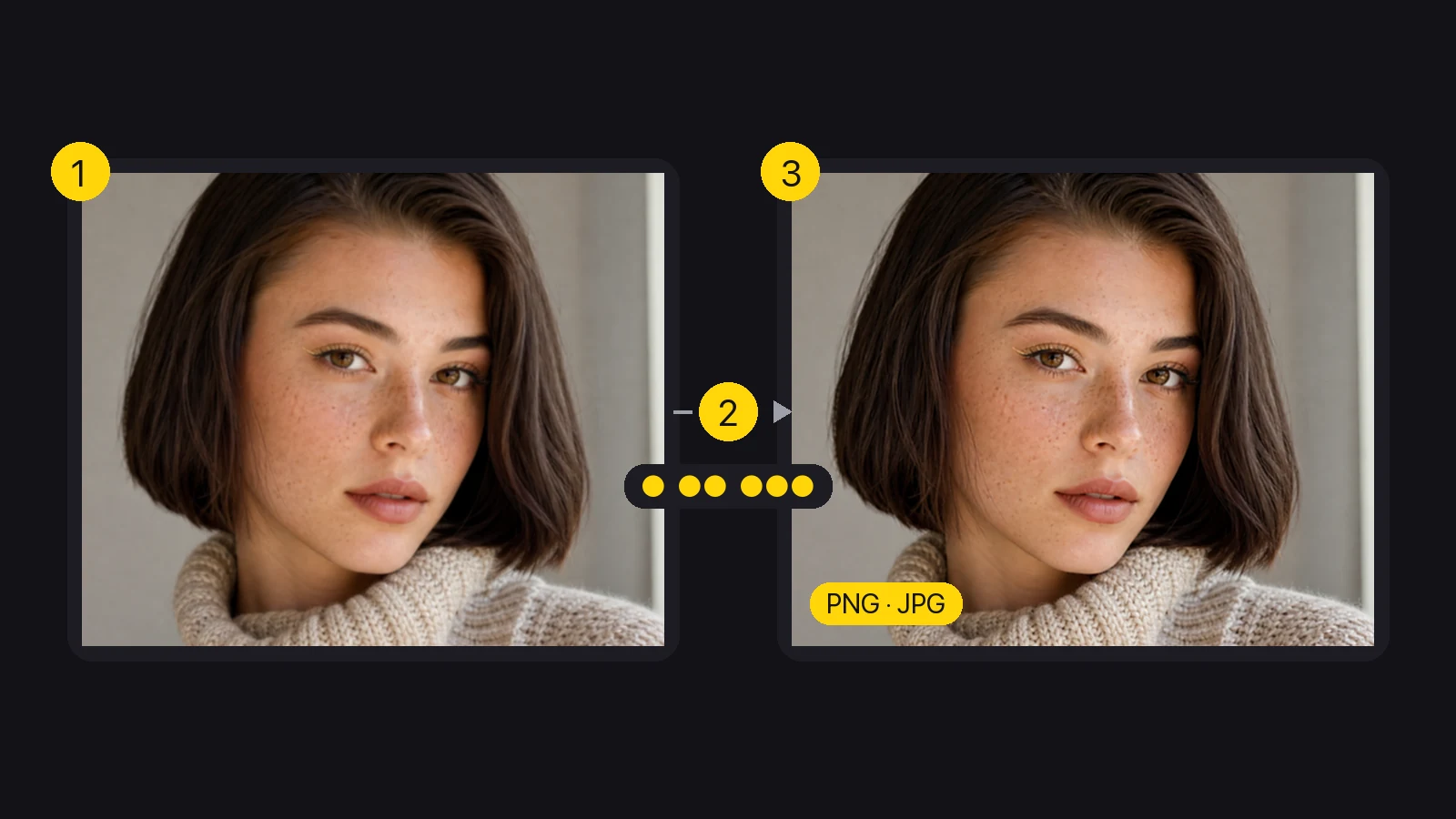
How to use the image sharpener in three steps

Upload, choose a strength and download: with this free image sharpener, image sharpening takes three steps.

Three steps: a soft portrait, a choice of three sharpening strengths and the sharpened PNG or JPG
  1. 1

    Upload your image

    Drop a JPG, PNG or WebP into the image sharpener. It opens right in your browser, so you can sharpen an image the moment it appears, even a large photo.

  2. 2

    Choose the sharpening strength

    In the image sharpener, start with Light, Medium or Strong and drag the slider to compare the original with the sharpened version. Open Fine-tune to set the amount, the radius of the edges and a noise threshold that keeps smooth areas clean.

  3. 3

    Download the sharper image

    Pick PNG or JPG and download the image at its original size, ready for your shop, slides or prints. Want a different look? Change the strength and download again, as often as you like.

Use cases

When to use image sharpening

From portraits to product photos, a little image sharpening makes details read clearly.

Portraits and profile photos

Phone portraits often come out slightly soft around the eyes and hair. A Light or Medium pass in the image sharpener brings back definition in lashes, brows and strands of hair, while the noise threshold keeps skin smooth for a profile photo that looks natural.

A sharpened portrait of a woman with a dark bob, freckles and a knit turtleneck

Product photos for online stores

Sharper edges make stitching, labels and fabric texture easier to see in a store listing. Use the image sharpener on each product shot at its final size and download a PNG or JPG that is ready for the shop, a catalog or a marketplace upload.

A sharpened product photo of a steel watch with a green dial and leather strap

Scanned documents, screenshots and text

Scans and screenshots lose crispness when they are resized or compressed. A Strong pass in the image sharpener makes letters, lines and diagrams stand out again, which helps for slides, handouts and reference images you read at a glance.

A sharpened photo of a coffee bag with a clearly readable label

Landscapes and travel photos

Distant mountains, buildings and foliage benefit from a wider radius that lifts larger structures. Sharpen the image before you print or share it, and use the threshold to keep skies and water free of grain.

A sharpened landscape of an alpine lake with mountains and a pine tree

Creator stories

How people use the image sharpener

“Our team headshots were shot on a phone and looked a little soft next to the brand guide. I ran each one through the image sharpener on Light and kept the noise threshold up so skin stayed smooth. The eyes finally read clearly on the About page.”
Laura KimMarketing Coordinator

FAQ

Image sharpener FAQ

How image sharpening works, which settings to choose and how it compares with AI upscaling.

Image sharpening increases the contrast along edges, so outlines, text and textures look more defined. This image sharpener uses unsharp masking, the method behind the sharpen filters in photo editors: it finds the edges in your photo and lifts them by the amount you choose.

Reviewed by Super Resolution TeamUpdated

Try the free image sharpener

Open the image sharpener, upload a photo, pick Light, Medium or Strong, compare it on the slider and download a sharper PNG or JPG for free, with no sign-up.

Sharpen an image